
8Planning a route
Plan a trip stop by stop in the Route tab. This chapter covers every part of it.
8.1Open the planner
You plan a trip in the Route tab. Type where you start and where you finish. Add the places you want to pass. The app finds roads that suit your vehicle.
- Tap Menu.
- Tap the Route tab.
- Scroll past Plan with AI to Plan Your Route.
From the top down, the tab holds these parts:
- Route Summary. It shows once you have a route.
- Plan with AI. You type the trip in words. It has its own chapter.
- Plan Your Route. The place boxes, Add Stop, Clear and Leaving on.
- Vehicle for this route, then the road switches.
- The Plan Route button.
- Saved Routes, My Tracks, Home Base and Saved Spots.
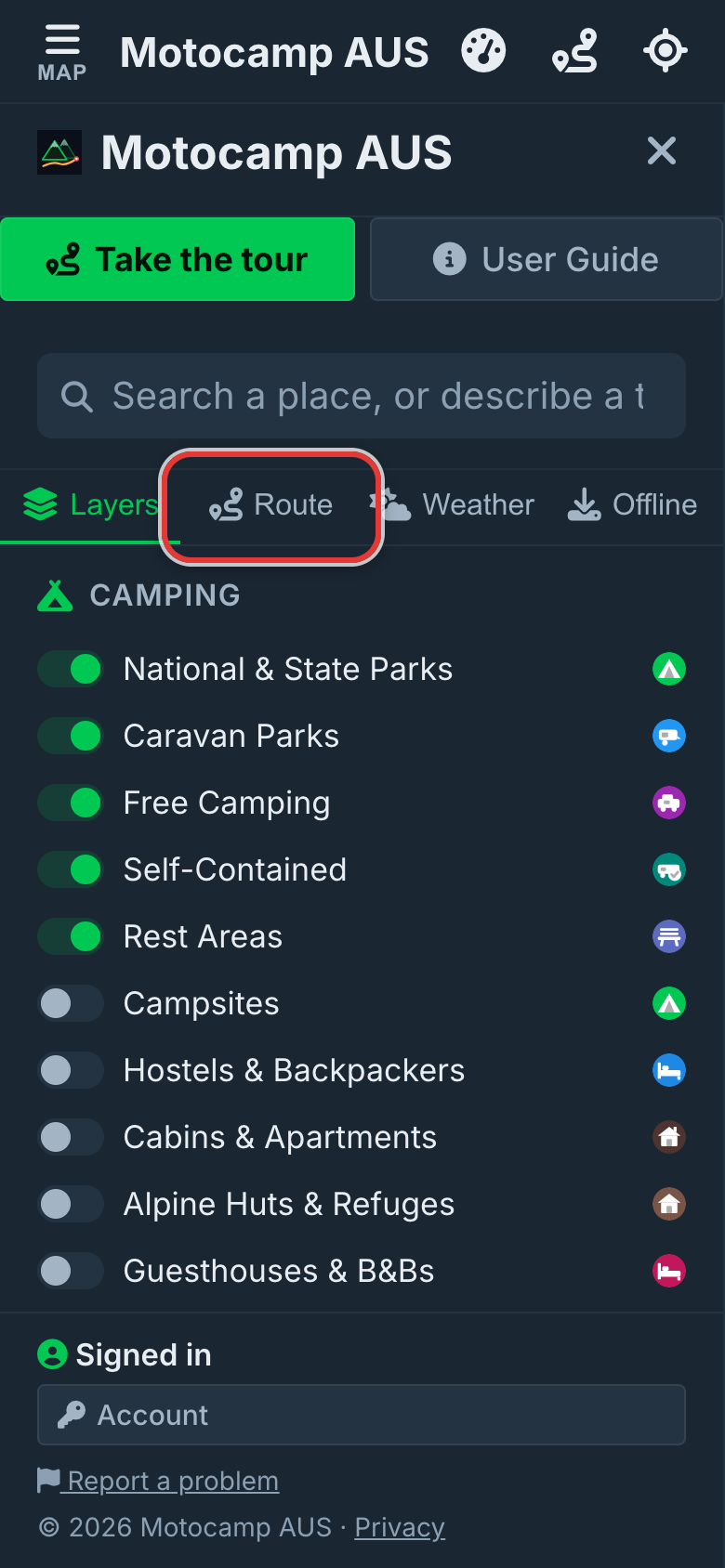
Step by step, with pictures: Plan your own route, stop by stop
8.2Start and End
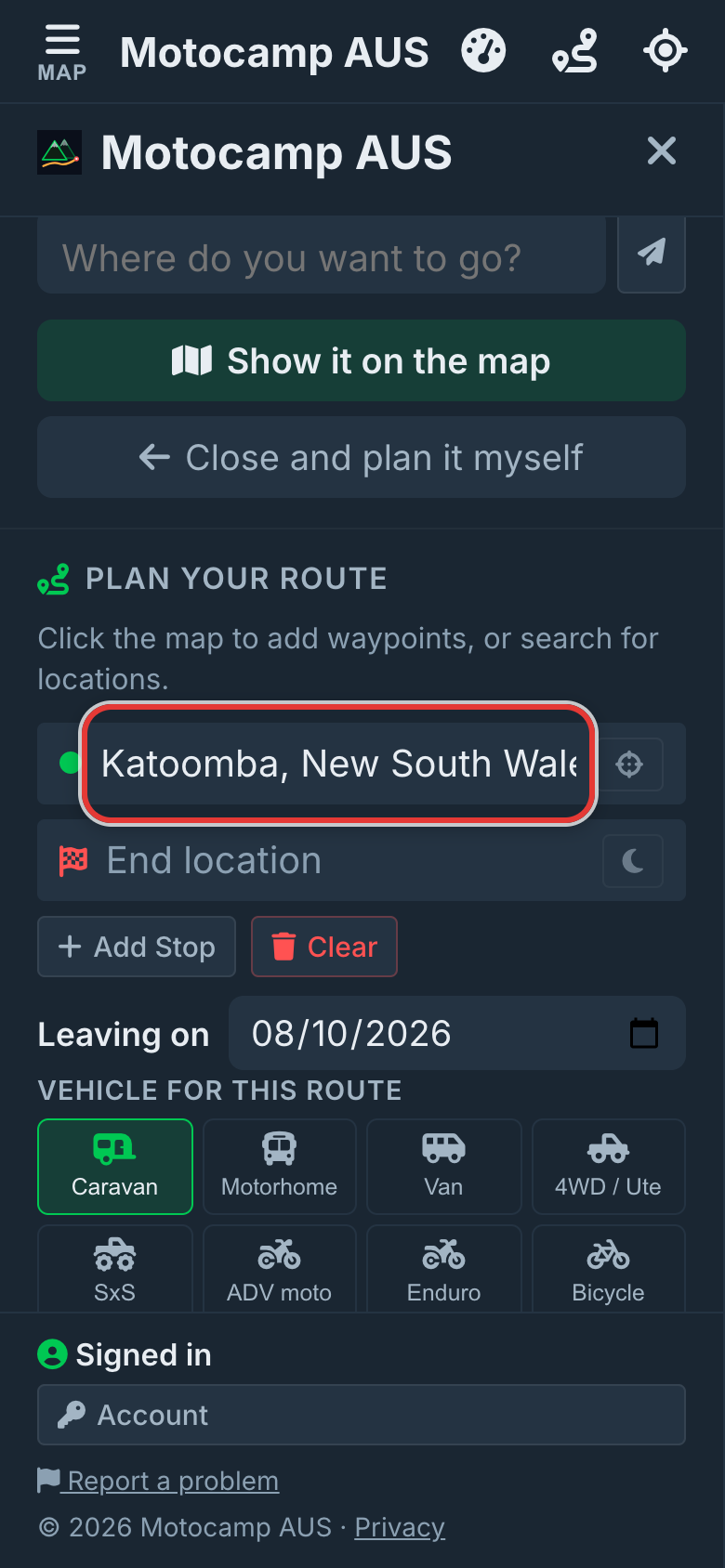
Every route needs a start and an end. You can type a town, a camp or an address.
- Tap the Start location box.
- Type the first few letters of the place.
- Tap the right place in the list that drops down.
- Tap the End location box.
- Type your last place and tap it in the list.
Tap an empty box to see places you used before. They have a small clock beside them.
8.3Use current location
To start from where you are now, use the round crosshairs button. It sits beside the Start location box.
- Tap the crosshairs button beside Start location.
- Allow the app to see your location if your phone asks.
The box then says My Location.
8.4Add, move and remove stops
Stops are places you want to pass on the way. The route visits them from the top of the list down.
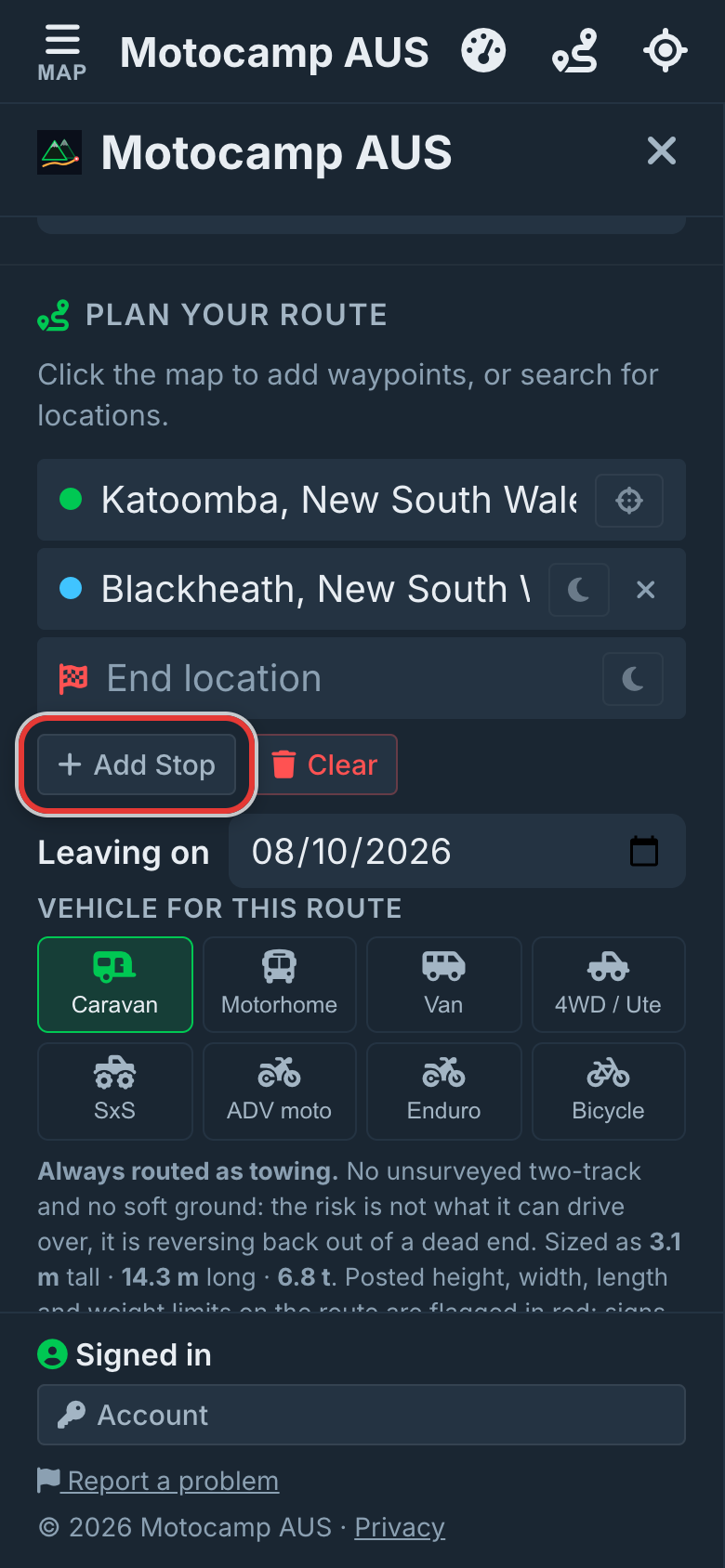
- Tap Add Stop.
- A new box, Stop 1, appears between Start and End.
- Type the place and tap it in the list.
- Tap Add Stop again for each extra stop.
To change the order, press the dot at the left of a stop. Drag it up or down, then let go.
To take a stop out, tap the X at the right of its box.
If a route is already on the map, both changes plan it again straight away.
8.5The moon: where you sleep
A stop is not always a night. The moon button tells the app where you sleep.
Each stop and the End box has a moon beside it. The Start box has none.
- Tap the moon beside a stop. It turns amber.
- Tap it again to take the night off.
On the map, a stop with a night shows a bed instead of a dot.
After you plan, the Route Summary shows a line with your days and nights. It changes as you tap a moon.
With no moons set, the app works out the nights from the driving time. A day is about 9 hours of driving. It is 7 hours with a motorhome, a caravan, anything towing, an enduro bike or a side-by-side. On a bicycle it is 6 hours.
Then the app picks a town where each day runs out. The trip plan marks those as its own pick.
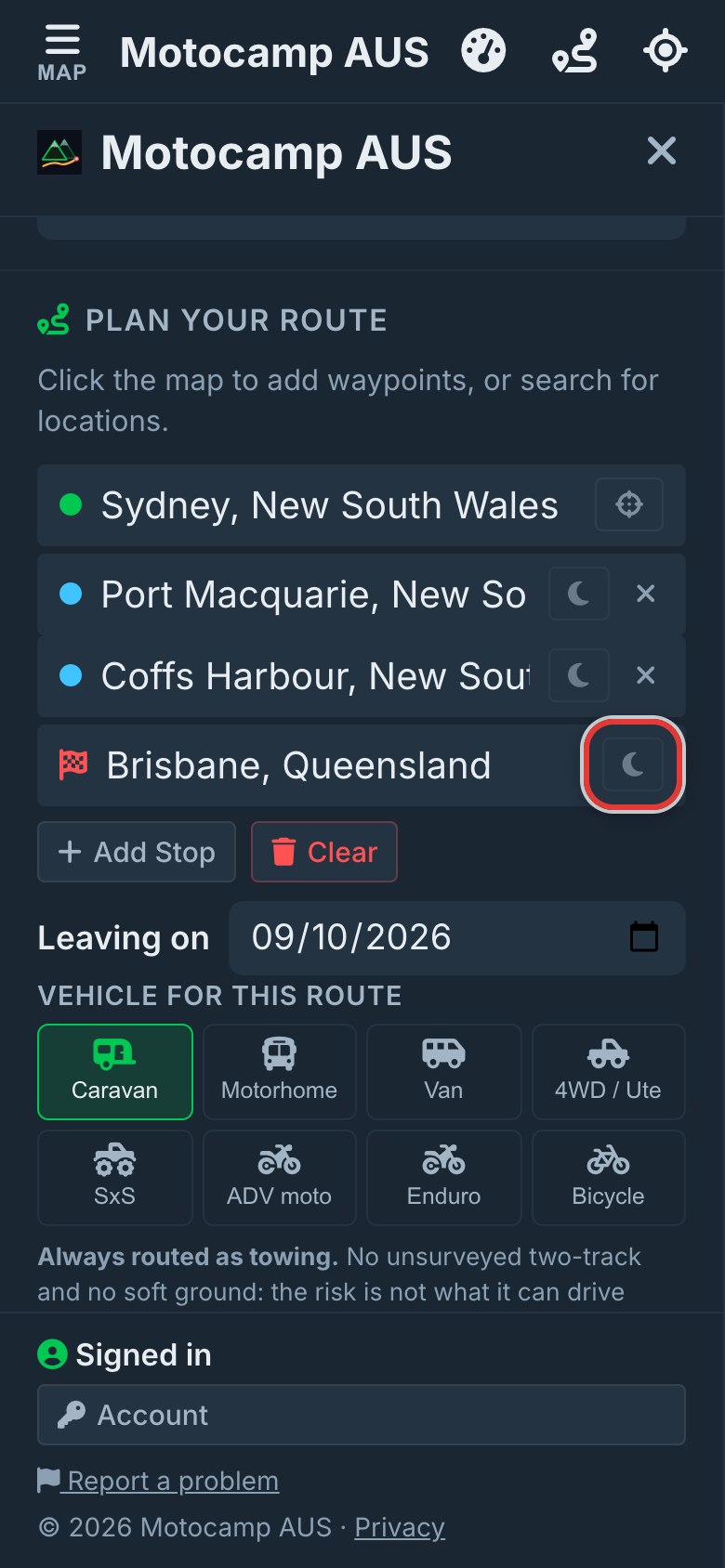
Step by step, with pictures: Turn your route into a day-by-day plan
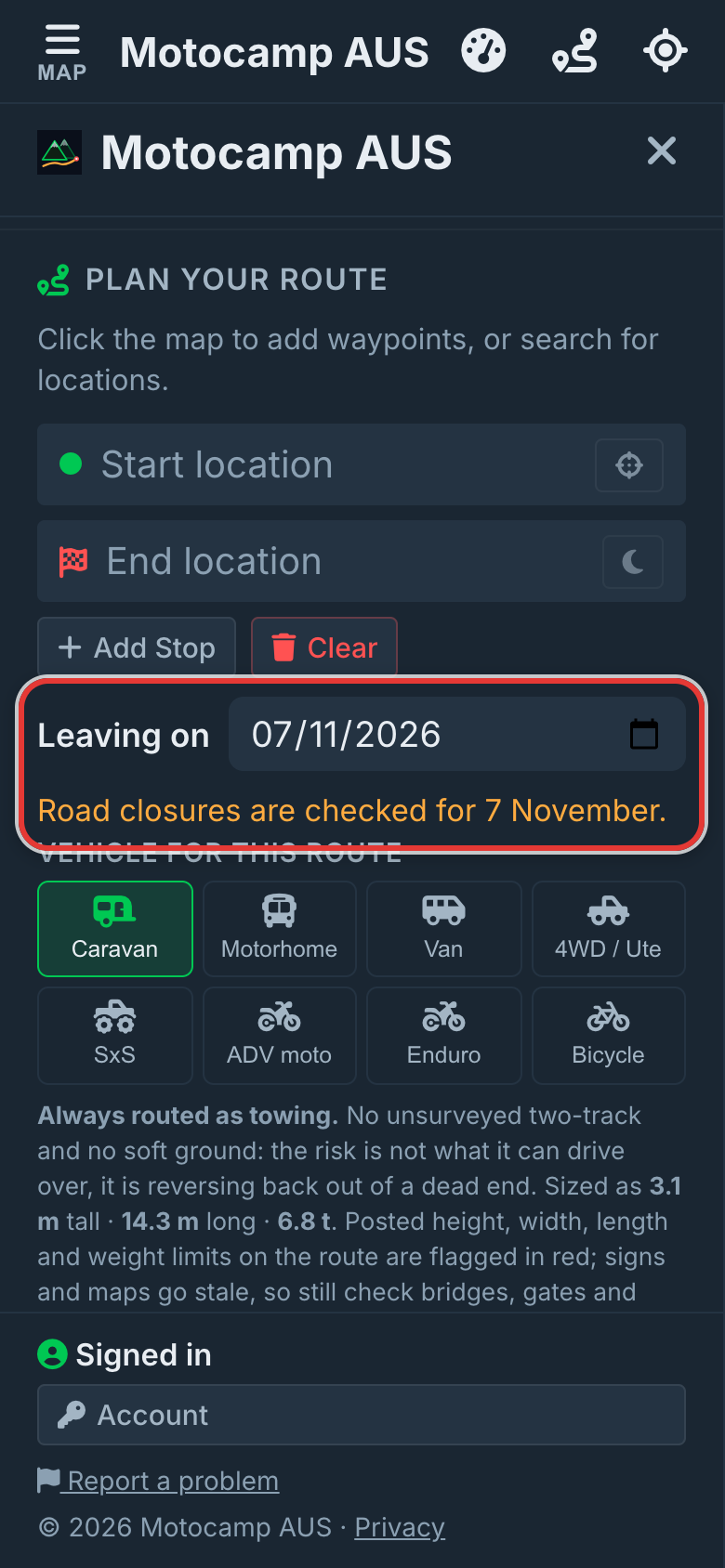
8.6Leaving on: your travel day
Leaving on is the day you set off. It sits just under Add Stop and Clear.
- Tap the Leaving on box.
- Pick the day you leave.
You can't pick a day in the past. The app remembers the day you pick.
This is what the date changes:
- Road closures are checked for that day, not for today.
- A line under the box says which day is checked.
- Roads shut for the season are judged for that day.
- If you change the date, a route on the map is planned again.
- The trip plan gives each day the forecast for its own date.
Tap Clear to set the date back to today.
Step by step, with pictures: Closed roads, checked for your trip day
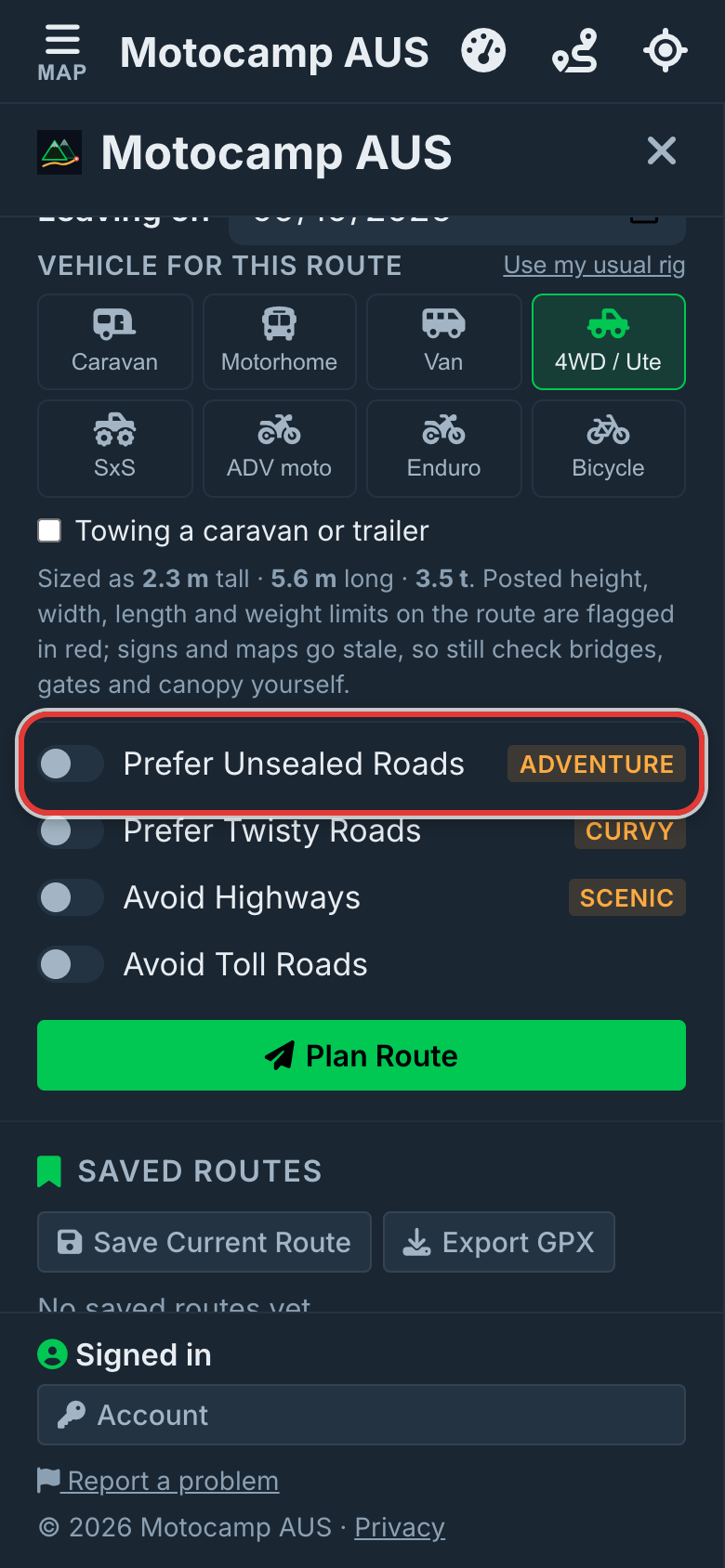
8.7The road switches
The switches sit under Vehicle for this route. They change the kind of road the app looks for. With them all off, you get the usual route for your vehicle.
| Switch | What it does |
|---|---|
| Prefer Unsealed Roads | Looks for unsealed roads. If that way is more than 1.8 times as long, you get the usual route and a note. |
| Prefer Twisty Roads | Looks for winding back roads, up to 1.6 times the direct distance. Needs signal. |
| Avoid Highways | Keeps you off motorways. If the back roads take over a quarter longer, you get the usual route and a note. |
| Avoid Toll Roads | Keeps you off roads you pay to use. A note says how much longer that makes the trip. |
| Caravan-safe roads | For a caravan, a motorhome or anything towing. See the Your vehicle chapter. |
With Prefer Unsealed Roads and Prefer Twisty Roads both on, the unsealed wins. A note says so.
For an enduro bike, Prefer Unsealed Roads is called Hardest Tracks. A bicycle hides the road switches.
With a route on the map, flip a switch and the route is planned again.
Step by step, with pictures: Choose the kind of road you want
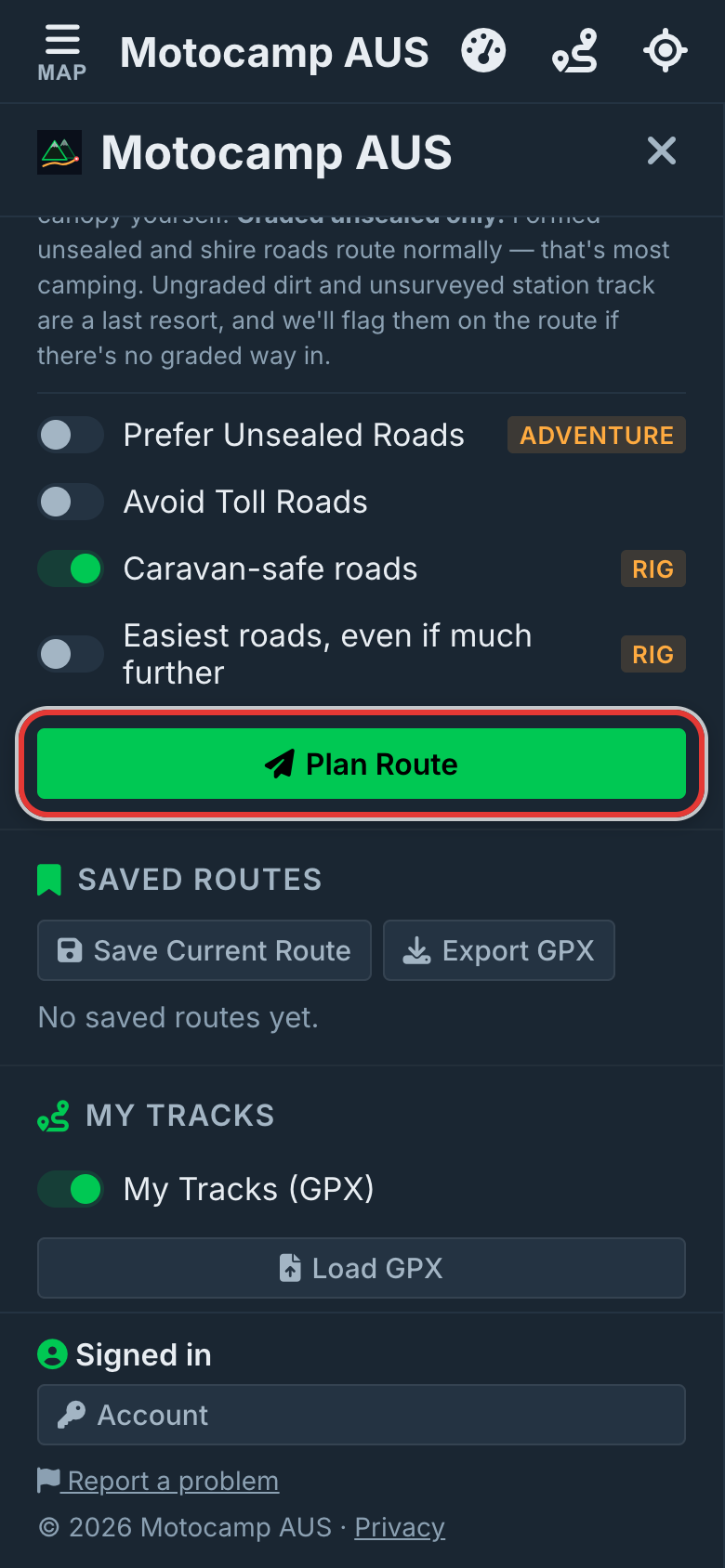
8.8Plan Route
- Check your start, stops and end.
- Check the vehicle and switches.
- Tap Plan Route.
The line of your trip is drawn on the map. The Route Summary opens at the top of the Route tab.
With no signal, your phone plans the route itself, using the maps you keep on it. The Offline chapter explains this.
8.9The Route Summary
The Route Summary is at the top of the Route tab. It shows what you need to know about the trip.
| Part | What it shows |
|---|---|
| Total Distance | How far the whole trip is, in kilometres. |
| Drive Time | Hours of driving, not counting stops. Bikes show a bike word here instead. |
| Arrive | The clock time you would get there if you left right now. |
| Days line | Your days and nights. See the moon section. |
| Email me this trip plan | Sends the trip plan to you. See the trip plan section. |
| Route Options | Sometimes shown. Tap another line to use it. |
| Take the exact route (GPX) | Sends the route to another app or a GPS unit. |
| Notes | What the app did, and why. |
| Warnings | Things on the route to check before you go. |
| Elevation Profile | The hills on the route. |
| Stop cards | Weather and nearby services at each stop. |
With Prefer Unsealed Roads on, unsealed roads show as a dashed brown line.
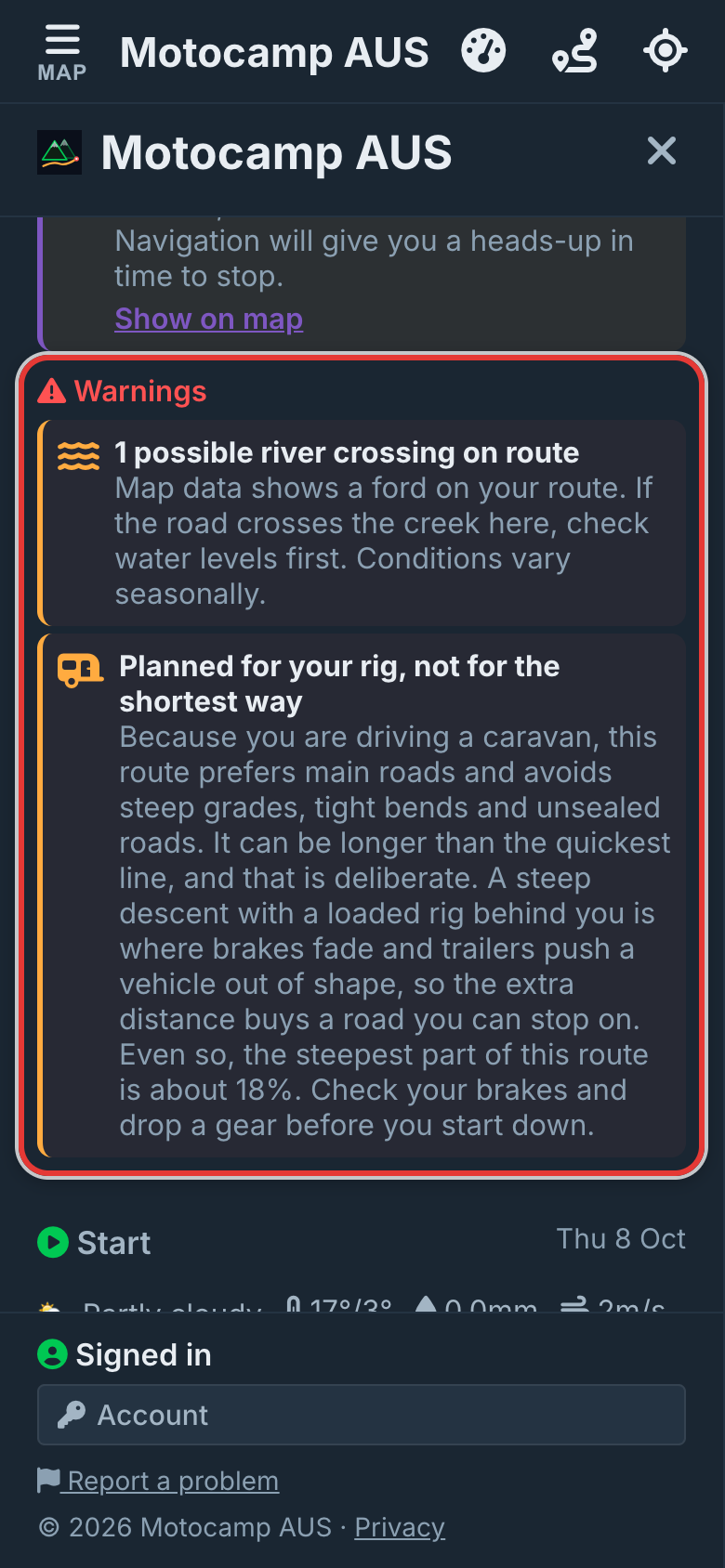
8.10Warnings
Warnings are things on the route you should check. A red edge means serious. An orange edge means take care.
The app looks at the route against the map and live reports. It lists what it finds.
| Warning | What it means |
|---|---|
| Official weather warning | A warning from the Bureau of Meteorology and the state services covers part of the route on your day. |
| ROAD CLOSED, or Closed part of the day | A live report says a road on the route is shut. Some cards offer Show detour. |
| Delays | A smash, fire or flood is slowing traffic on the route. |
| Seasonal closure on your route | A road on the line is shut for part of the year. It shows on the map in orange. |
| Posted limits your rig won't clear | A sign on the route is too low, narrow, short or light for your vehicle. Marked in red. |
| Sections closed to you | Private land, or a road closed to your vehicle. Marked in red. |
| Permit required | A road on the route needs a permit. |
| Restrictions we could not read | A rule in the map the app can't understand. Marked in yellow. Tap it to read it. |
| Gates or barriers on route | A gate on the line. Some are locked out of season. Marked in amber. |
| River crossings on route | A ford on the line. The map doesn't know how deep. Marked in blue. |
| Heavy rain, strong winds, freezing or extreme heat | The forecast at a stop is rough. |
| High route in the cold months | The route climbs high at a time of year when snow is likely. |
| Planned for your rig, not for the shortest way | Why a rig route is longer, and its steepest hill. |
| Access not checked | The app couldn't check the route. Look over it on the map first. |
Tap a coloured mark on the map to read more about it.
Step by step, with pictures: Closed roads, checked for your trip day · Keep your rig clear of low bridges · See the weather on your trip
8.11Notes in the summary
Notes sit above Warnings. Each has a heading. A note tells you what the app did and why.
| Heading | When you see it |
|---|---|
| Prefer Unsealed | How much of the trip is unsealed. Or why you got the usual route instead. |
| Hardest tracks | The same, for an enduro bike. |
| Prefer Twisty Roads | How much longer the curves make it. Or why you got the usual route. |
| Avoid Highways | Why some or all of the trip uses the usual roads. |
| Toll roads | The toll roads on the route, or that one could not be avoided. |
| Your rig | How a caravan or motorhome route was planned, and anything to check yourself. |
| Caravan restrictions | A road signed against caravans that the route goes round, or still uses. |
| Road Closures | A closure the route goes round, or could not get round. |
| Seasonal closures | A road shut for the season, and the way round it. |
| Closing soon | A road open on your day that shuts soon after. |
| Backtrack | The route goes back over the same road. Try a different stop order. |
| Worth a Stop | Places worth a look along the way. |
| Speed cameras | Cameras on the route that the map knows about. |
| Offline ready | The 7 day forecast for the route is saved on your phone. |
Some notes have a link, such as Show on map. Tap it to see the places on the map.
8.12Worth a Stop
After you plan, the app looks along the route. It finds good places to stop within about 400 m of the line.
It looks for these kinds of places:
- Viewpoints and lookout towers.
- Waterfalls and hot springs.
- Caves and natural wonders.
- Ghost towns and historic sites.
- Other attractions.
A Worth a Stop note says what you will pass.
- Find the Worth a Stop note in the Route Summary.
- Tap Show on map.
The places light up on the map. Tap one to read about it.
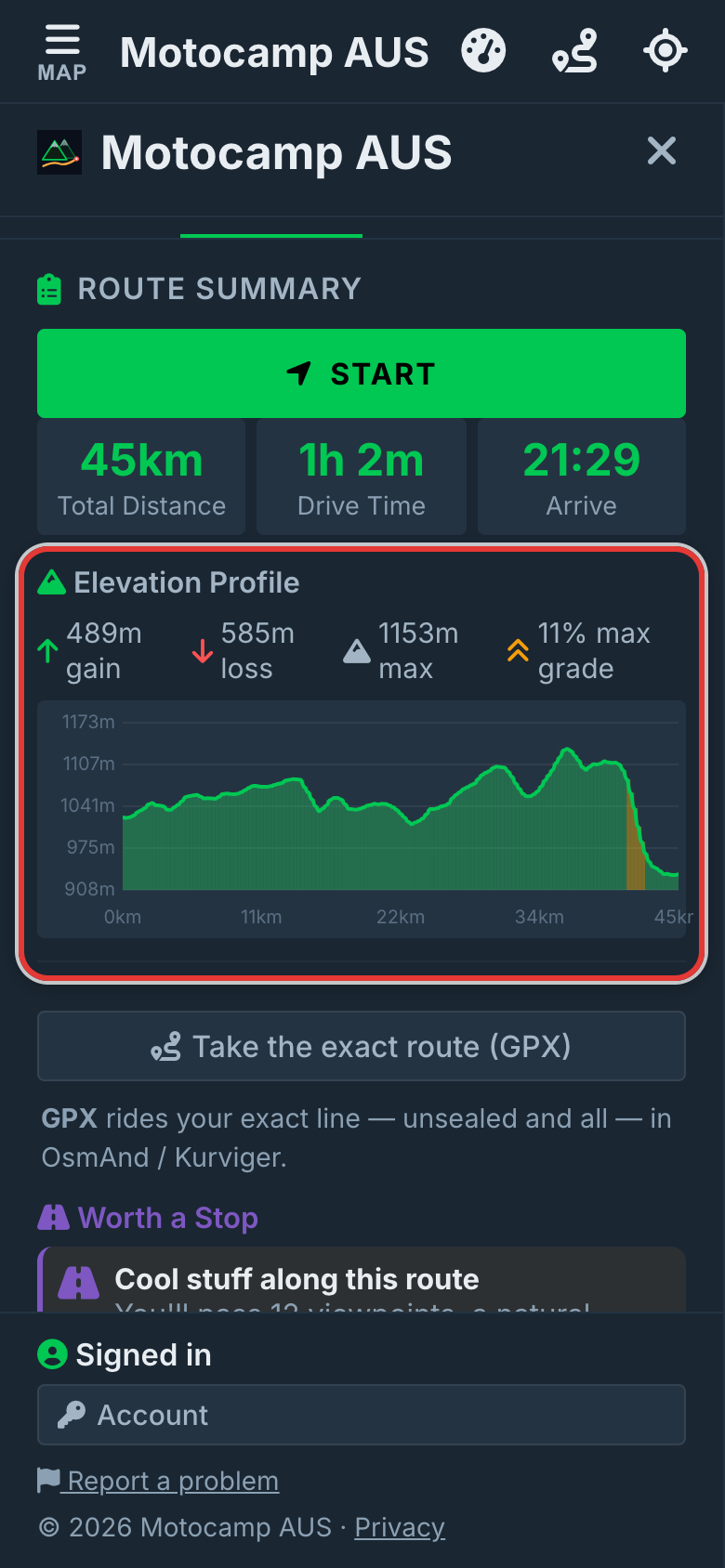
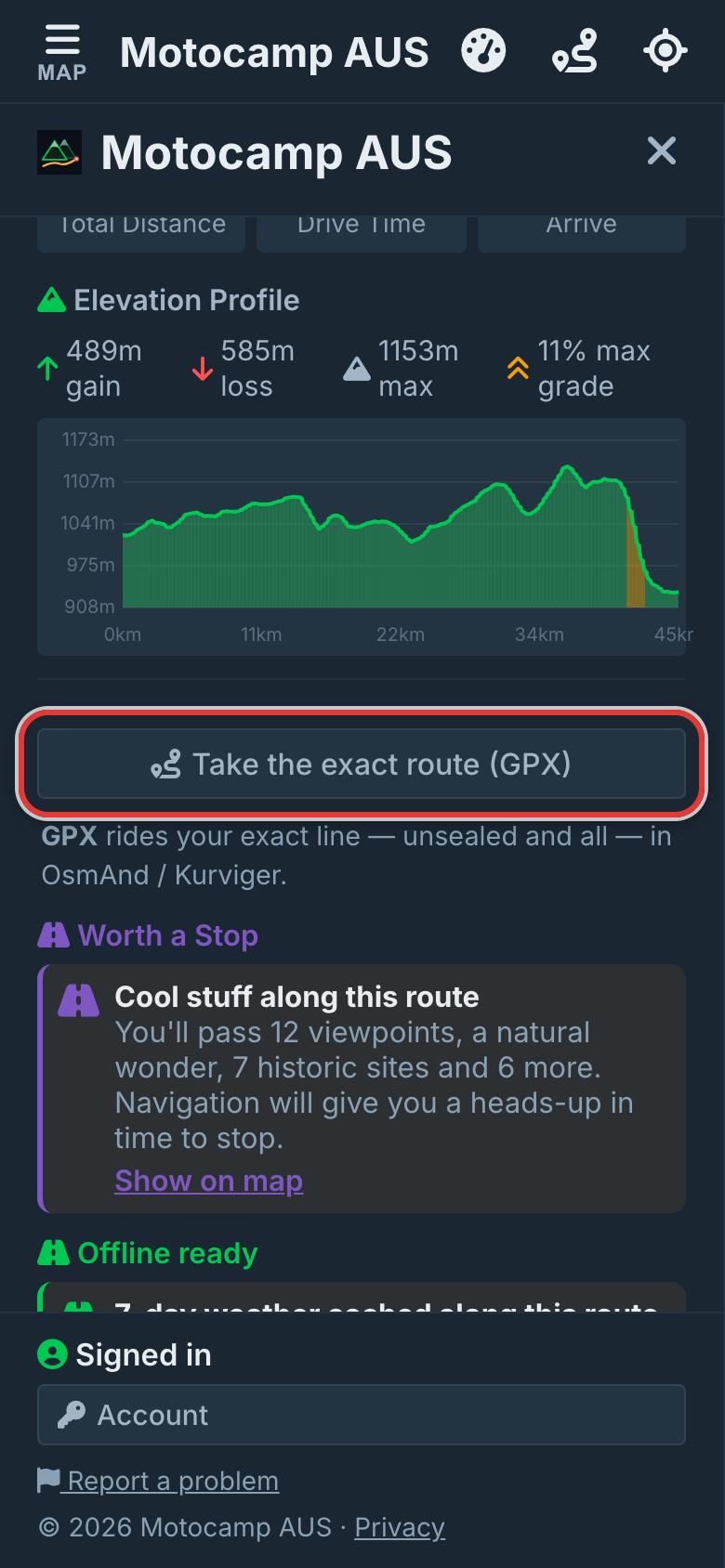
8.13The Elevation Profile
The Elevation Profile is a picture of the hills on your route. Left is the start. Right is the end. The higher the line, the higher the ground.
| Number | What it means |
|---|---|
| gain | All the climbing added up, in metres. |
| loss | All the going down added up, in metres. |
| max | The highest point on the route. |
| max grade | The steepest stretch of at least 500 m, as a percentage. |
The colours show how steep each part is.
- Green: under 6%.
- Yellow: 6 to 12%.
- Orange: 12 to 20%.
- Red: 20% or more.
On a computer, move the mouse along the picture. It shows the height and distance, with a dot on the map. Click to move the map there.
8.14Weather at each stop
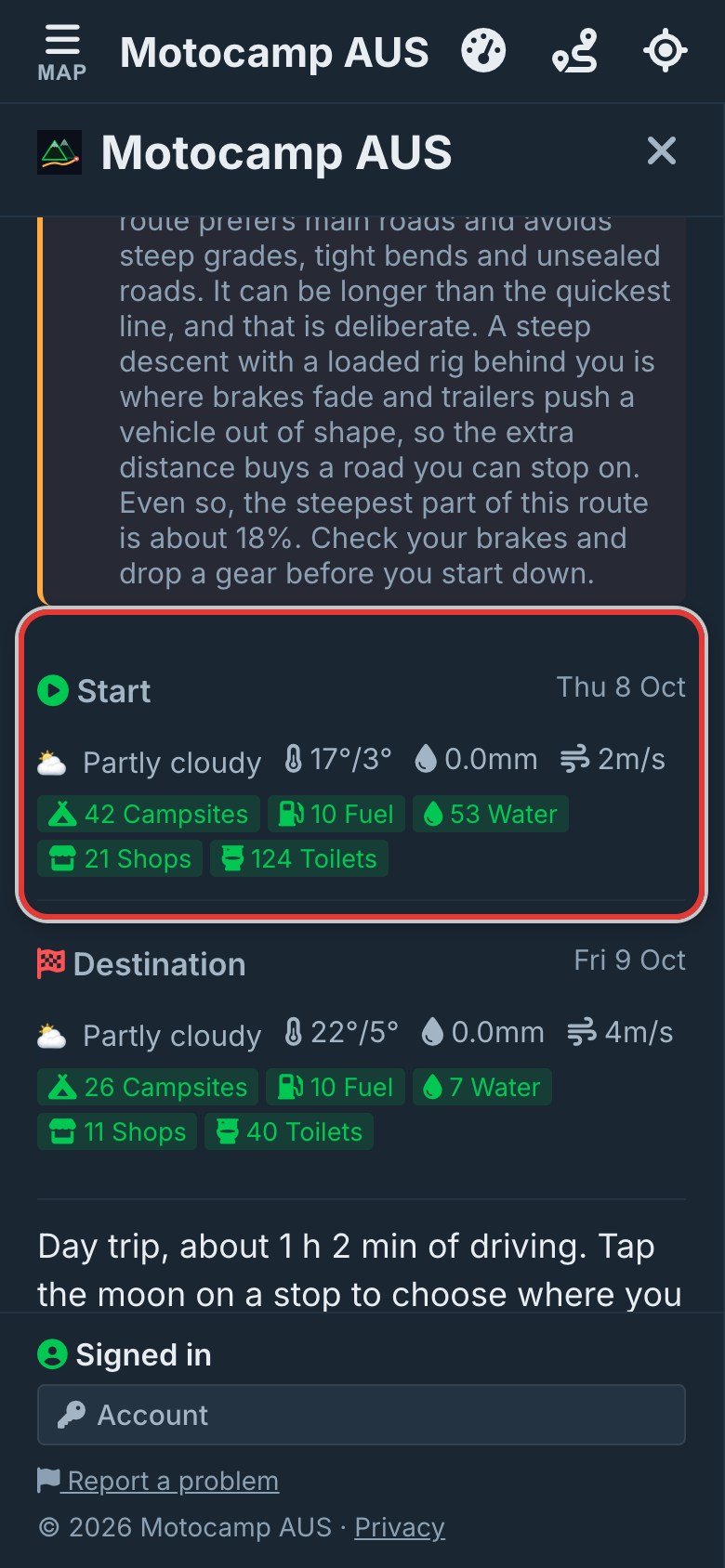
Each place on your route gets a card at the bottom of the summary.
Each card shows a date, the sky, the high and low in °C, the rain in mm and the wind. The wind is in metres per second.
Each card also counts places near the stop. It counts campsites, fuel, water, shops and toilets within about 20 km.
Strong wind, heavy rain, frost or great heat at a stop also shows under Warnings.
Step by step, with pictures: See the weather on your trip
8.15Shape the line by dragging
You can move the line onto a road you like better.
- Press on the line of your route.
- Drag it onto the road you want.
- Let go. The route follows that road.
The spot shows as a small white ring.
- Drag the ring to move it.
- Tap the ring to take it off again.
A ring only shapes the road. It is not a stop. It gets no night, no weather card and no places to stay.
The app keeps your rings when you plan again. It only redraws the part of the trip you changed.
8.16Plan on the map: press and hold
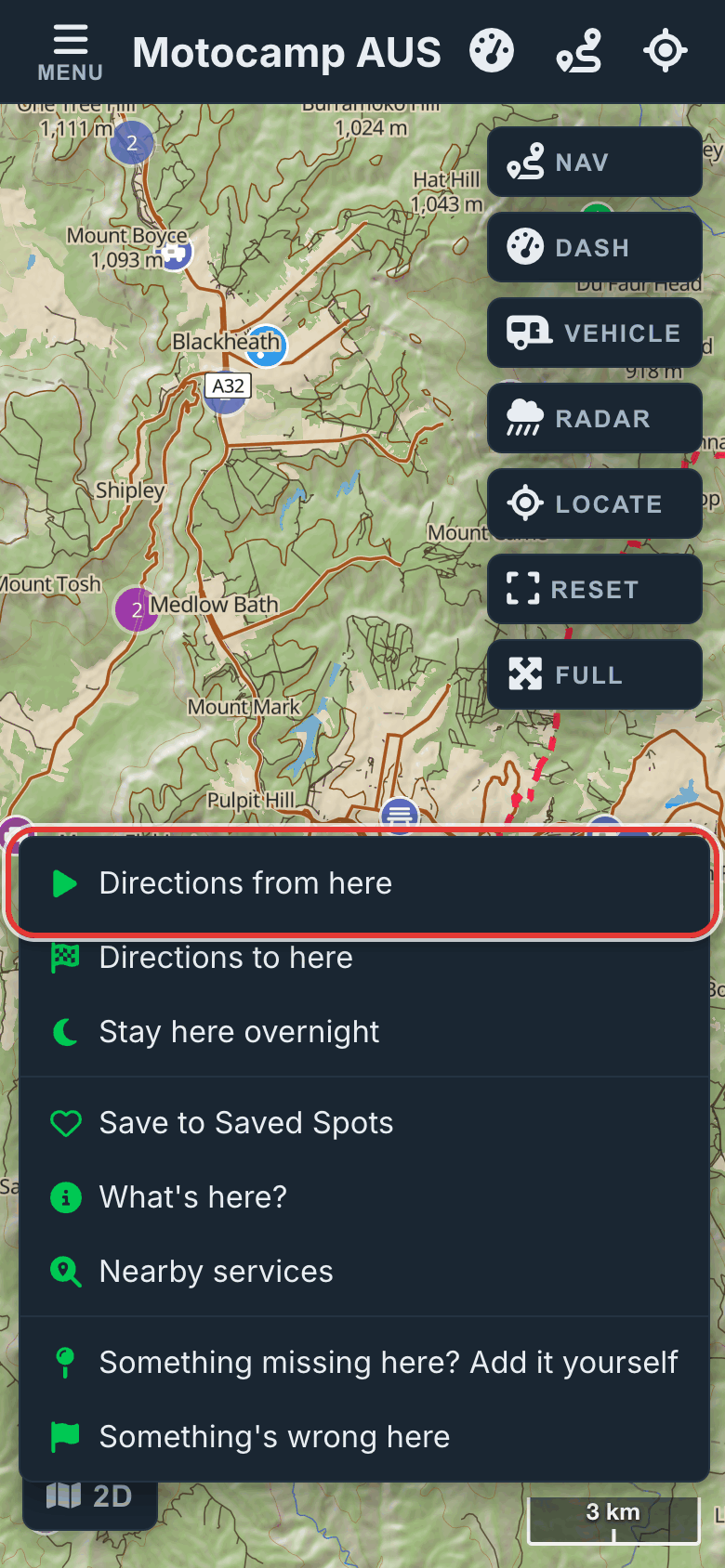
You can build a route on the map itself. Press and hold a spot on the map. On a computer, right click. A menu opens.
The route part of the menu changes with what you have so far.
| What you have | Menu items |
|---|---|
| No route yet | Directions from here. Directions to here. Stay here overnight. |
| A start only | Directions to here. Stay here overnight. Use this as the start instead. |
| An end only | Directions from here. Use this as the destination instead. |
| A start and an end | Head here next. Stay here overnight. Start a NEW route from here. Start a NEW route to here. Just change the destination. |
| Item | What it does |
|---|---|
| Directions from here | Makes this spot the start. If there is no end yet, tap the map where you want to go. |
| Directions to here | Makes this spot the end. On a phone with no start, the start is where you are now. |
| Stay here overnight | The same, with a night set here. |
| Head here next | Your old end becomes a stop. This spot becomes the new end. |
| Start a NEW route from here, or to here | Clears the old route first, then starts again. |
| Just change the destination | Moves the end here. Nothing else changes. |
| Use this as the start instead | Moves the start here. Nothing else changes. |
Below the route items, the menu always has these:
- Save to Saved Spots.
- What's here?
- Nearby services.
- Ways to add a place or tell us something is wrong.
8.17Clear, and the save offer
Clear takes the route off the map. It empties the boxes and sets Leaving on back to today.
There are two Clear buttons. One sits beside Add Stop. The other is on the map while a route is up.
A long route can take a while to build. So if it is 100 km or more and not saved yet, the app asks first.
A card says Save this route before you clear it? It has a Name box with a name filled in.
| Button | What it does |
|---|---|
| Save | Saves the route with that name, then clears it. |
| Don't save | Clears the route without saving. |
| Cancel | Leaves the route as it is. |
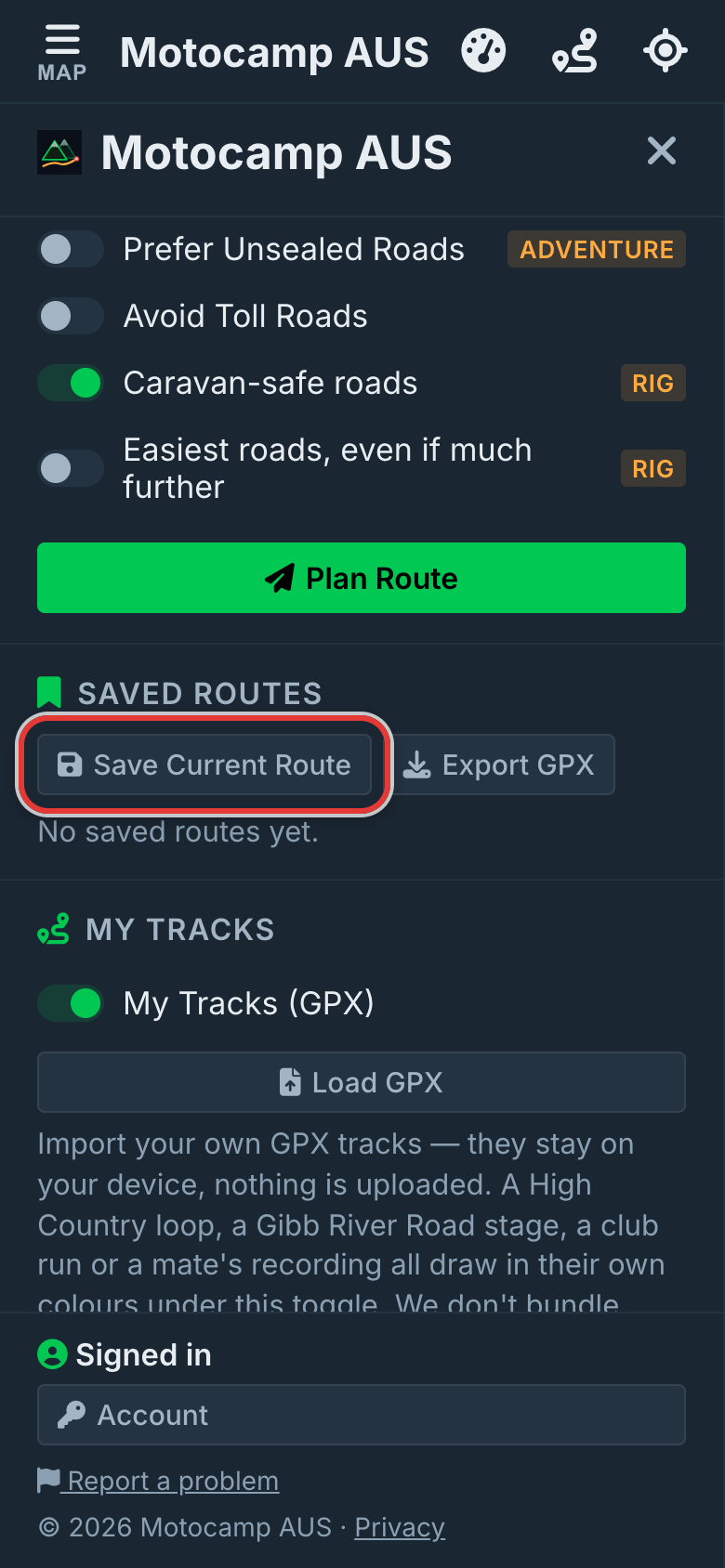
8.18Saved Routes
Saved Routes keeps routes you want again. A saved route comes back exactly as you saved it. That includes stops, nights, white rings, switches, the vehicle and Leaving on.
When you are signed in, saved routes are kept with your account. They show on your other devices too.
- Plan your route.
- Tap Save Current Route, under Saved Routes.
- Type a name.
- Tap OK.
Each saved route shows its name, its start and end, and the date you saved it.
| Button | What it does |
|---|---|
| Load | Puts the route back on the map, just as saved. It works with no signal. |
| Update | Shows after you change a loaded route and plan again. Saves the new version over the old one. |
| X | Deletes the route. The app asks first. A deleted route can't come back. |
Export GPX, beside Save Current Route, makes a GPX file of the route on the map. A GPX file is a common file that holds the line of a trip. Other maps and GPS units can read it.
8.19Take the exact route (GPX)
GPX is a common file that holds the line of a trip. Other map apps and GPS units can read it.
Take the exact route (GPX) is in the Route Summary. It sends your route, on the exact roads you planned.
- Tap Take the exact route (GPX).
- On a phone, pick an app in the share menu, such as OsmAnd or Kurviger.
On a computer, the file downloads instead.
8.20My Tracks and Load GPX
Got a GPX file of a trip, such as a High Country loop or a club run? Load it into the app. GPX is a common file that holds the line of a trip.
- Tap Menu, then the Route tab.
- Scroll to My Tracks.
- Tap Load GPX.
- Pick one or more files.
The file is drawn on the map in its own colour. It stays on your device and is not sent anywhere.
The last file you pick also becomes a route. The app fills in the start, stops and end, then plans it for your vehicle. Once the route is drawn, the file's own line is taken away. The route takes its place.
Some files cross ground with no road. There the route has to leave the file's line. A message says for how far.
The app only plans trips in Australia. A file that goes outside it is not loaded. A message names the place, such as a file that is in Indonesia. Points out at sea don't count, so a ferry trip loads.
Use the My Tracks (GPX) switch to show or hide your tracks. Tap a track on the map to see its name and length. Tap Remove track to delete it.
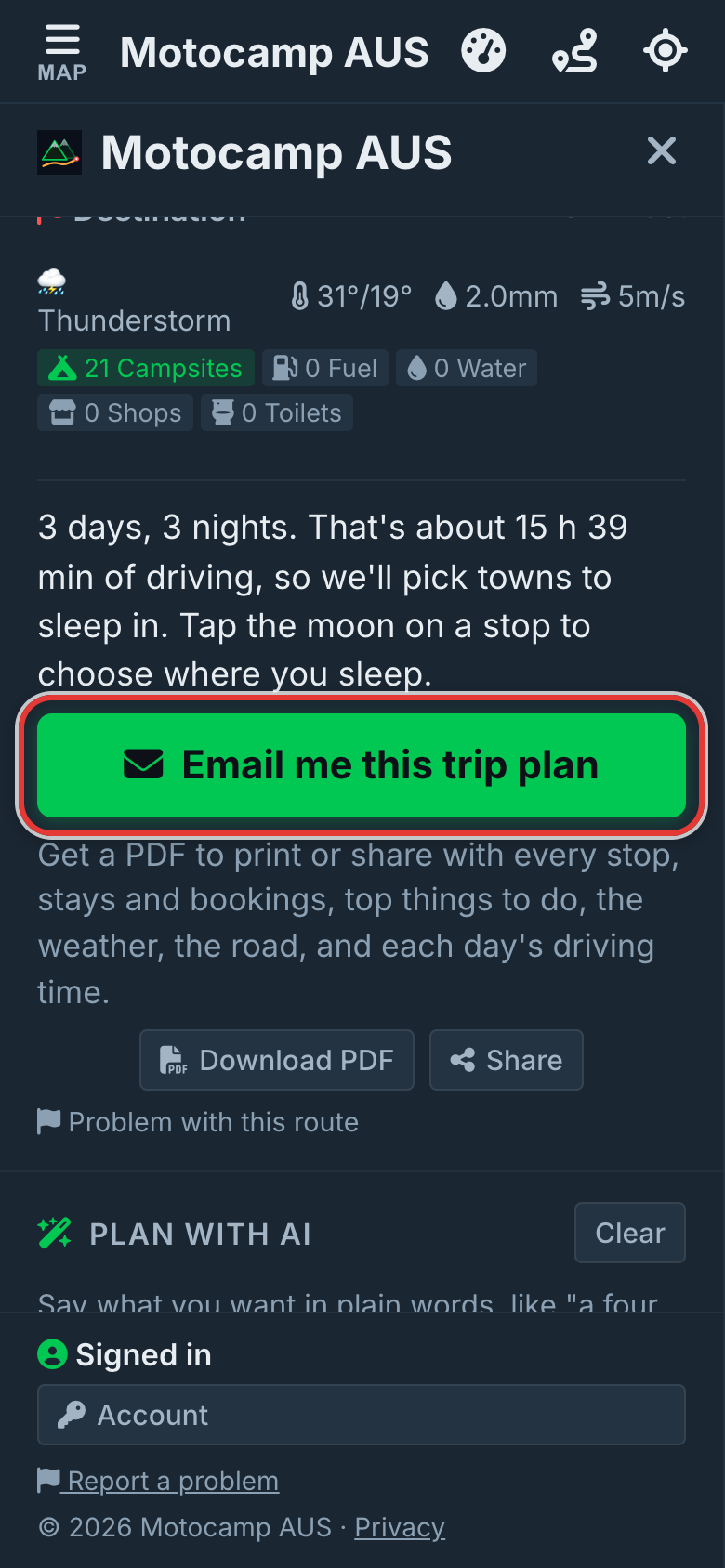
8.21The trip plan
The trip plan turns your route into a day by day plan. It comes as a PDF. A PDF is a file you can open, print or share on any phone or computer.
Each day has its own map, the distance, the driving time, the climbs and the fuel stops. You get places to stay near each night and things to do. Each day gets the forecast for its date, if it is within about two weeks.
- Plan your route and set Leaving on.
- Tap the moon on the stops where you sleep.
- Tap Email me this trip plan, in the Route Summary.
- Wait a few seconds while it is built.
It goes to the email address on your account, with the PDF attached. A card says Your trip plan is on its way. Tap Got it.
The route is also kept in Saved Routes, under the name of the plan. Load it any time, change it and email yourself the new plan.
Tap Download PDF to save the plan on your device instead. On a phone that can share files, a Share PDF button sits beside it.
Tap Share this trip to send the route as a link. Anyone with the link sees the line, the distance and the stops. Your name is not on it. Your start and finish show as the nearest town, unless you choose to show them.
Say you drive a caravan, motorhome or campervan. Then the stays are holiday parks, free camps and campgrounds it can reach.
For other vehicles you get places with a bed and the nearest campsites.
Step by step, with pictures: Turn your route into a day-by-day plan