
3Getting started
This chapter takes you from opening the app to your first planned trip. It also covers signing in and the free trial.
3.1What you need
- A phone, a tablet or a computer.
- A web browser, such as Safari or Chrome.
- An internet connection to sign up and to download maps.
- An email address.
- A bank card. You add it when you start the free trial.
- Location turned on, for turn by turn directions.
Motocamp is a website. There's nothing to get from an app store. The same account works on all your devices.
3.2Open the app
- Open Safari or Chrome.
- Go to motocampaustralia.com.
- Sign in, or start your free trial.
On a phone, tap Menu at the top left to open the menu. While the menu is open, the same button says Map. Tap it to see the map again.
On a computer, the menu sits open down the left side.
3.3Put the app on your home screen
An icon on your home screen opens Motocamp in one tap. It opens full screen, like any other app, and stays signed in.
On a phone, the app offers this itself. A card called Keep Motocamp on your phone shows each time you open it, until the icon is there. Tap Not now to hide it for this visit.
iPhone or iPad, in Safari:
- Open Safari and go to motocampaustralia.com.
- Sign in.
- Tap Share. It looks like a box with an arrow up. On new iPhones, tap the three dots first.
- Scroll down and tap Add to Home Screen.
- Tap Add.
Android phone or tablet, in Chrome:
- Open Chrome and go to motocampaustralia.com.
- Sign in.
- Tap the three dots at the top right.
- Tap Install and create shortcut.
- Tap Install.
Laptop or desktop computer:
- Go to motocampaustralia.com.
- Bookmark the page.
- In Chrome or Edge, you can also click the small install icon at the right end of the address bar. Then Motocamp opens in its own window.
3.4Create your account
You can start your free trial on the welcome page, or in the app itself.
On the welcome page:
- Go to motocampaustralia.com/welcome.
- Type your email in the Email address box.
- Pick a password with 8 or more letters or numbers. Type it in the Password (min 8 characters) box.
- Tap Start your 14 days free.
- The app opens at the card step. See the next section.
In the app:
- On the sign in card, tap No account? Start a 14-day free trial, card up front.
- Type your email in the Email address box.
- If you like, type a name in Display name (optional).
- Type a password of at least 8 characters in Choose a password (min 8 chars).
- Tap Start free trial.
If the app says it sent a confirmation link, open that email. Tap the link, then come back and sign in. Can't find it? Check your junk or spam folder. Or tap Resend confirmation email.
Have a Google account? Tap Continue with Google on the sign in card instead. Then you don't need a Motocamp password.
3.5The free trial and the card step
Motocamp is free for 14 days. You add a card to start. Nothing is taken from it for 14 days.
- After you sign up, the app shows Start your 14 days free.
- Pick a plan. The top button, Get started, is the yearly plan. The button under it is the monthly plan. Each shows its price.
- A secure payment page opens, run by Stripe, the payment company. Type your card details there.
- Back in the app, wait while it says Activating your subscription.
- When it says You're in, tap Let's go.
Your card details go to Stripe. They never reach Motocamp.
- We email you a week before your first payment. So there's no need to cancel early.
- Three days before the trial ends, a note at the top of the app gives the day and the amount.
- Cancel before the 14 days are up and you pay nothing.
- To cancel, tap Menu, then Account, then Manage or cancel subscription.
3.6Sign in
- Tap the Username or email box.
- Type the email you signed up with. Older accounts may use a username.
- Type your password in the Password box. Tap Show if you'd like to see it.
- Tap Sign in.
Motocamp stays signed in on that device. You only sign in again if you tap Sign out of this device in Account.
| If the card says | What to do |
|---|---|
| Incorrect username or password | Check the spelling. Or tap Email me a sign-in code. |
| Can't reach the server, check your signal and try again | Move to better signal, then tap Sign in again. |
| Type your password, or tap "Email me a sign-in code" instead. | The password box is empty. Type it, or use a code. |
3.7Forgot your password? Sign in with a code
Use this if you forgot your password, or never set one. The button used to say Forgot password, or no password yet? Now it says Email me a sign-in code.
- On the sign in card, tap Email me a sign-in code.
- Type your email in the Username or email box.
- Tap Send code.
- Open the email from Motocamp. It can take a minute, so check junk or spam too.
- Type all 8 digits in the 8-digit code box.
- Tap Sign in.
If you had a password, the app now asks you to choose a new one. Type it in New password (min 8 chars) and tap Update password.
If you never had a password, the app opens. Then it asks you to set one.
- Code not there? Tap Resend code.
- Rather have a link? Tap Email me a link instead. Open the link on the same device.
- If it says the code doesn't match, check the newest email and type all 8 digits.
- If it says the code is no longer valid, tap Resend code for a fresh one.
3.8Still can't sign in
Tap Message us if you can't sign in, near the bottom of the sign in card. A short form opens. It works even if your phone has no email app set up.
Need help? opens the help page. It covers the home screen icon, signing in and billing.
You can also email [email protected]. Please say the email or username you signed up with.
3.9The two-minute tour
The tour plans a real trip for you and shows you round the app. It takes about three minutes. You only tap Next. It plans Bright to Omeo in Victoria, over the Great Alpine Road.
The first time you sign in, a card asks New here? Tap Start tour, or Not now.
To take it any time, tap Menu, then Take the tour at the top of the menu.
| Step | What you see |
|---|---|
| Your menu | Search and the four tabs: Layers, Route, Weather and Offline. |
| What goes on the map | The switches that put pins on the map. It turns on Fuel Stations and Drinking Water. |
| A trip, planned for you | The trip, drawn as a green line on the map. |
| Two ways to see it | The Topo and Sat buttons, and the 2D/3D button at the bottom left. |
| The numbers | How far, how long, and when you get there. |
| What is in the way | Gates, water crossings, closed roads and bad weather on the trip. |
| Every hill | A chart of the climbs and drops. Touch it to read any point. |
| Rain, right now | The live rain radar, a map of rain falling now. |
| Saved to your account | The trip, saved as My first trip. |
| The vehicle dash | A big screen for the road: speed, height, heading and more. |
| Turn by turn | The navigation screen. It doesn't start directions indoors. |
Each step has Back, Next and Skip tour. The last step says Finish. Then That is the tour shows. Tap Got it.
3.10Quick start: your first trip
Here's a first trip in eight steps. Do it at home, with wifi, before you leave.
- Tap Vehicle on the right side of the map. Pick what you drive. Until you do, the app plans for an ADV moto.
- Tap Menu, then Offline. On the first card, Offline map + terrain, tap Download. Wait until it says the maps are ready.
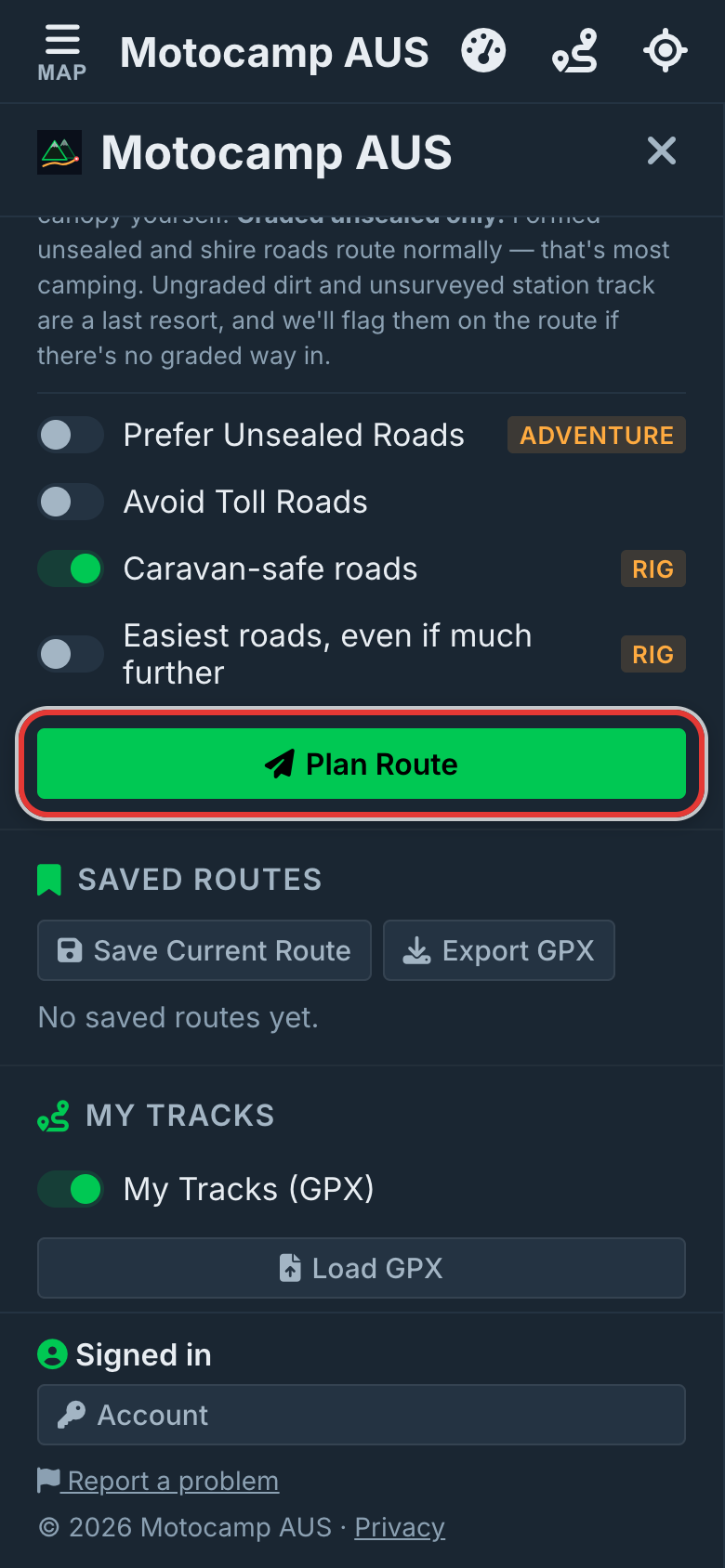
- Tap Menu, then Route. Scroll down to Plan Your Route.
- Type where you'll start in Start location. Pick the right place from the list. Or tap the crosshairs to start where you are.
- Type where you're going in End location, and pick it from the list. For a stop on the way, tap Add Stop first.
- Set Leaving on to the day you go, so closed roads are checked for that day. Then tap Plan Route.
- Read the Route Summary and the Warnings. Then tap Save Current Route and give it a name.
- When you're parked and ready, tap Start on the map. Tap Start from here if it asks. Then put the phone down and drive.
With that card on your phone, you can plan new routes with no signal. That works anywhere in Australia.
Step by step, with pictures: Plan your own route, stop by stop · Keep the map with no signal · Tell it your trip, get a route