
4Know your screen
This chapter names every button on the main screen. Each number in the pictures matches a row in the table below it.
4.1The main map screen
This is what you see when the Menu is shut. The map fills the screen. The buttons sit round the edges.
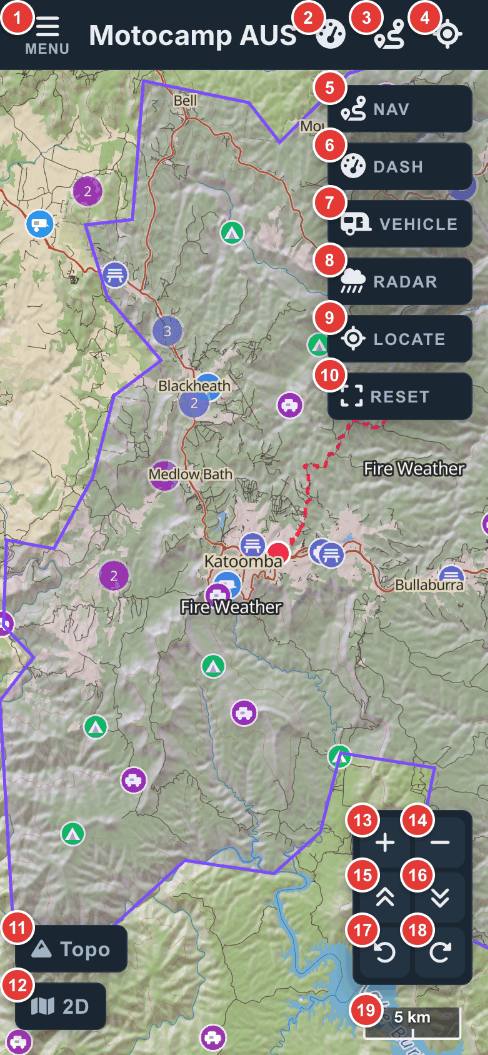
| No. | Name on screen | What it does |
|---|---|---|
| 1 | Menu | Opens the Menu. While the Menu is open, this button reads Map. Tap it again to see the map. |
| 2 | Gauge picture (top bar) | Opens the dash: a big speedo with your speed, the time, height and weather. |
| 3 | Route picture (top bar) | Opens Nav, the full screen driving map. It does the same as button 5. |
| 4 | Crosshair picture (top bar) | Shows where you are. It does the same as button 9. |
| 5 | Nav | Opens the full screen driving map. With no route planned, it asks Where to? |
| 6 | Dash | Opens the big speedo for your vehicle. It does the same as button 2. |
| 7 | Vehicle | Picks your vehicle from a short list. Its picture shows the vehicle you have now. Routes and campsite filters follow it. |
| 8 | Radar | Turns the live rain map on or off. It glows green while it is on. |
| 9 | Locate | Moves the map to you and puts a blue dot where you are. The dot keeps moving as you move. |
| 10 | Reset | Takes the map back to the view it opened with. |
| 11 | Topo | Swaps the drawn map for photos from the air. It then reads Sat. Tap again for Topo. |
| 12 | 2D | Stands the hills up in 3D. It then reads 3D. Tap again for the flat map. |
| 13 | Plus (+) | Zooms in one step. |
| 14 | Minus (−) | Zooms out one step. |
| 15 | Double arrow up | Tilts the view toward the horizon. On the flat map, it turns 3D on first. |
| 16 | Double arrow down | Makes the view flatter. |
| 17 | Round arrow left | Turns the map a little to the left. |
| 18 | Round arrow right | Turns the map a little to the right. |
| 19 | Scale bar | Shows how far a short line on the map is, in metres or kilometres. |
4.2Things that only show up sometimes
Some buttons only appear when you need them. They aren't in the picture above.
| What you see | When it shows | What it does |
|---|---|---|
| Start (big green button, bottom middle) | When a route is planned, on a phone | Starts turn by turn directions from where you are now. |
| Clear (bottom middle) | When a route is planned | Takes the route off the map. A long route asks if you'd like to save it first. |
| Clear (in the right-hand column) | When a route is planned | Does the same as the Clear at the bottom. |
| Three tiles, top left | When a route is planned | Show how far the trip is, how long it takes, and when you get there. If the route has stops, the third tile names the next one. |
| Height slider | In 3D only, above the Topo button | Makes the hills taller or flatter, from 1x to 3x. It starts at 1.3x. |
| Compass, top left | In 3D only | Shows which way is north. Tap it to face north again. |
| Mountain and a number, top left | On a phone, after you tap Locate | Shows how high you are, in metres, from your phone's own location. |
| Blue dot with an arrow | After you tap Locate | Shows where you are and which way you're facing. |
| Tap the map to set the destination | After you pick Directions from here | Asks you to tap the spot you want to go to. The X button stops it. |
| A card at the bottom | After you tap a pin or a name | Tells you about that place. See The map chapter. |
Step by step, with pictures: Plan and drive with 3D maps · Plan your own route, stop by stop
4.3The Menu
Tap Menu to open it. On a phone, the Menu covers the whole screen. Tap Map, or the X, to get back to the map.
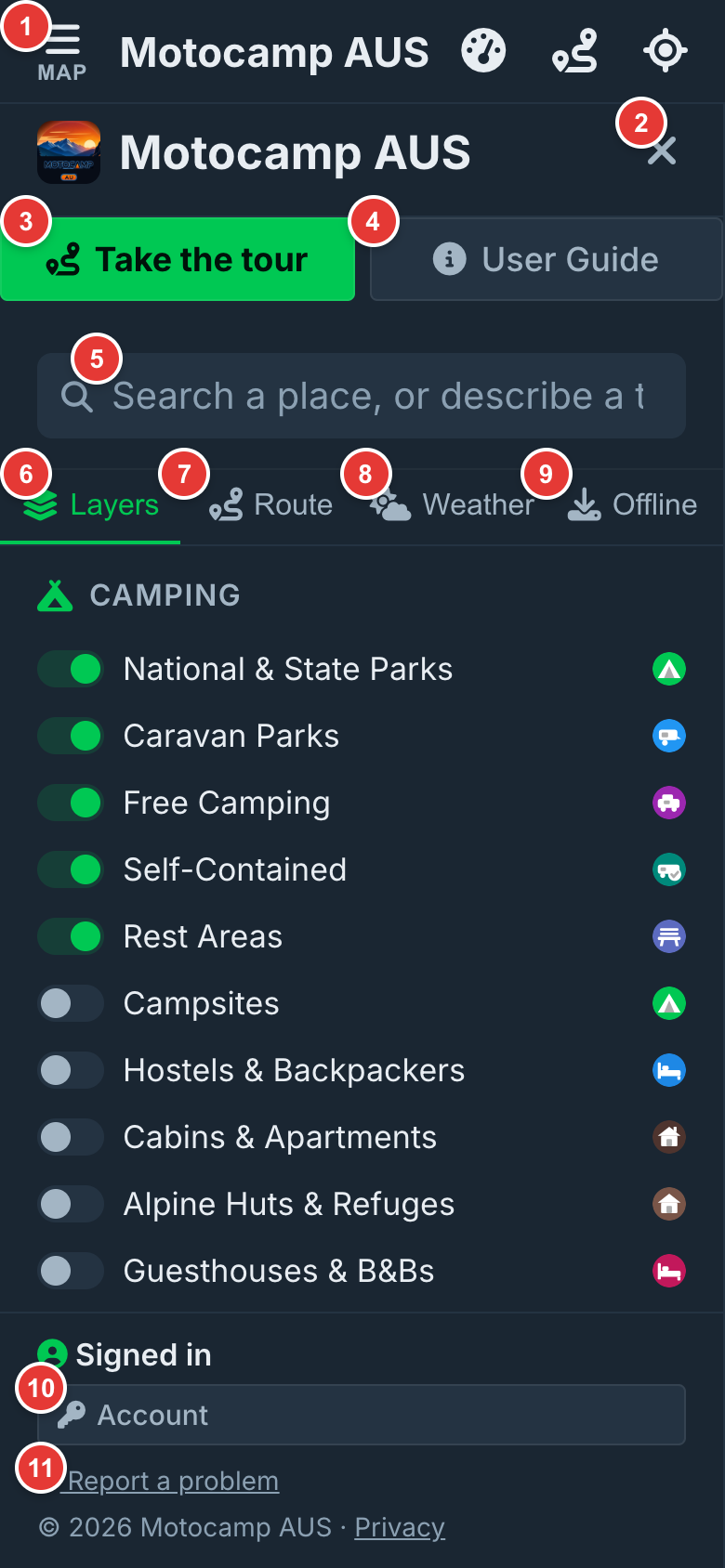
| No. | Name on screen | What it does |
|---|---|---|
| 1 | Map | The Menu button, now reading Map. Tap it to shut the Menu. |
| 2 | X | Also shuts the Menu. |
| 3 | Take the tour | Starts a short tour of the app. You can take it as often as you like. |
| 4 | User Guide | Opens the guide inside the app. It works with no signal. |
| 5 | Search a place, or describe a trip... | Finds a town, an address or a campsite. You can also type a whole trip idea here. |
| 6 | Layers | Switches for what shows on the map, like campsites, fuel and fires. |
| 7 | Route | Plans a trip from one place to another, with stops. |
| 8 | Weather | Rain, wind and the forecast for the week ahead. |
| 9 | Offline | Keeps maps on your phone, so the app works with no signal. |
| 10 | Account | Your vehicle, your password, your plan and your saved things. |
| 11 | Report a problem | Sends us a message from inside the app. |
While you're on the free 14 days, a green button to subscribe sits above Account. At the very bottom is a link to Privacy. The User Guide lists who made the maps.
4.4On a computer or tablet
On a wide screen, the Menu sits down the left side instead of covering the map. There's no top bar, so you use the buttons on the right.
- The double arrow at the top of the Menu folds it away. A small button at the top left brings it back.
- The bottom right has four arrows to move the map, and a middle button. The middle button faces the map north and flat.
- There's no Start button. Plan the route on the computer, then use Start on your phone.
- The height readout only shows on a phone.