
9Plan with AI
Describe a trip in your own words and get a real route back. This chapter shows what to write, what comes back and how to change it.
9.1What Plan with AI does
Plan with AI turns a trip idea into a real route. You write the trip the way you would tell a friend. It sends back two or three choices. Tap one, and the app draws it on the map.
AI means a computer that reads plain words and writes back. Here it only plans trips. It does not chat about other things.
You find it in the Route tab, under the heading Plan with AI. It is there while your free 14 days are running, or while you have a subscription.
Step by step, with pictures: Tell it your trip, get a route
9.2Open the planner
- Tap Menu at the top of the screen.
- Tap the Route tab.
- Find the Plan with AI box near the top.
- Tap the box that says Where do you want to go?
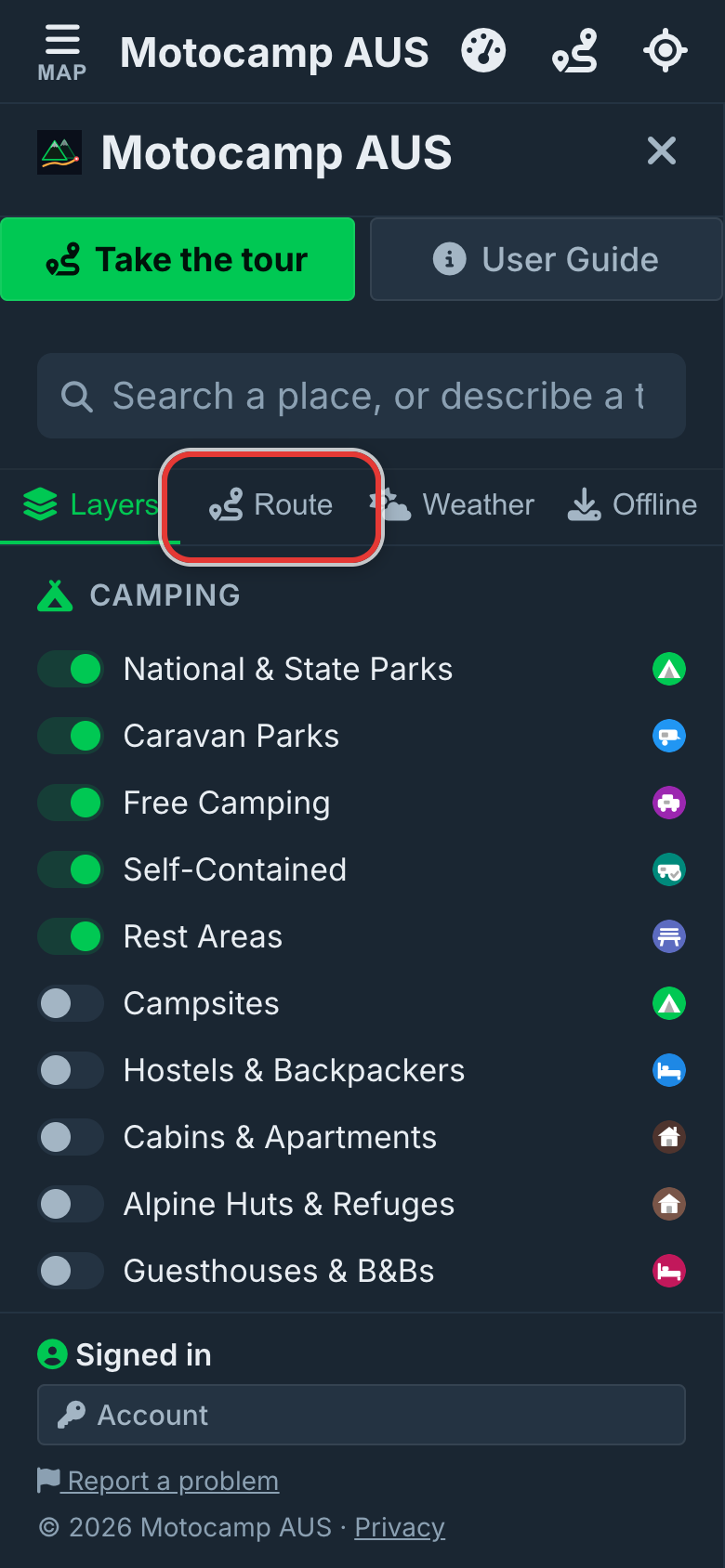
The planner then fills the whole Route tab, so you have room to read.
There is a second way in. Type a trip into the search box at the top of the Menu. A green row shows up under it that says Plan this trip with AI. Tap it.
9.3What to write
Write one or two plain sentences. These things help:
- Where you start.
- Where you want to end up. For a loop, say "loop" or "out of" a town.
- What you drive, if you have not picked it in the app.
- Where you like to sleep, such as parks with power.
- How long a day you like on the road, if it matters.
- Any dates you must keep.
You don't need to say how many nights. The planner works that out for you.
| Kind of trip | You could write |
|---|---|
| A trip from A to B | Perth to Exmouth towing the caravan, six nights, parks with power and water |
| A loop from home | A four night loop out of Melbourne with camps each night |
| A day out | A day trip from Lorne along the Great Ocean Road, back by dark |
| A big rig with a daily limit | Bright to Brisbane in the motorhome, no more than 5 hours a day |
| A trip with dates | Leave Sydney on the 12th, be in Mudgee on the 14th, home by the 18th |
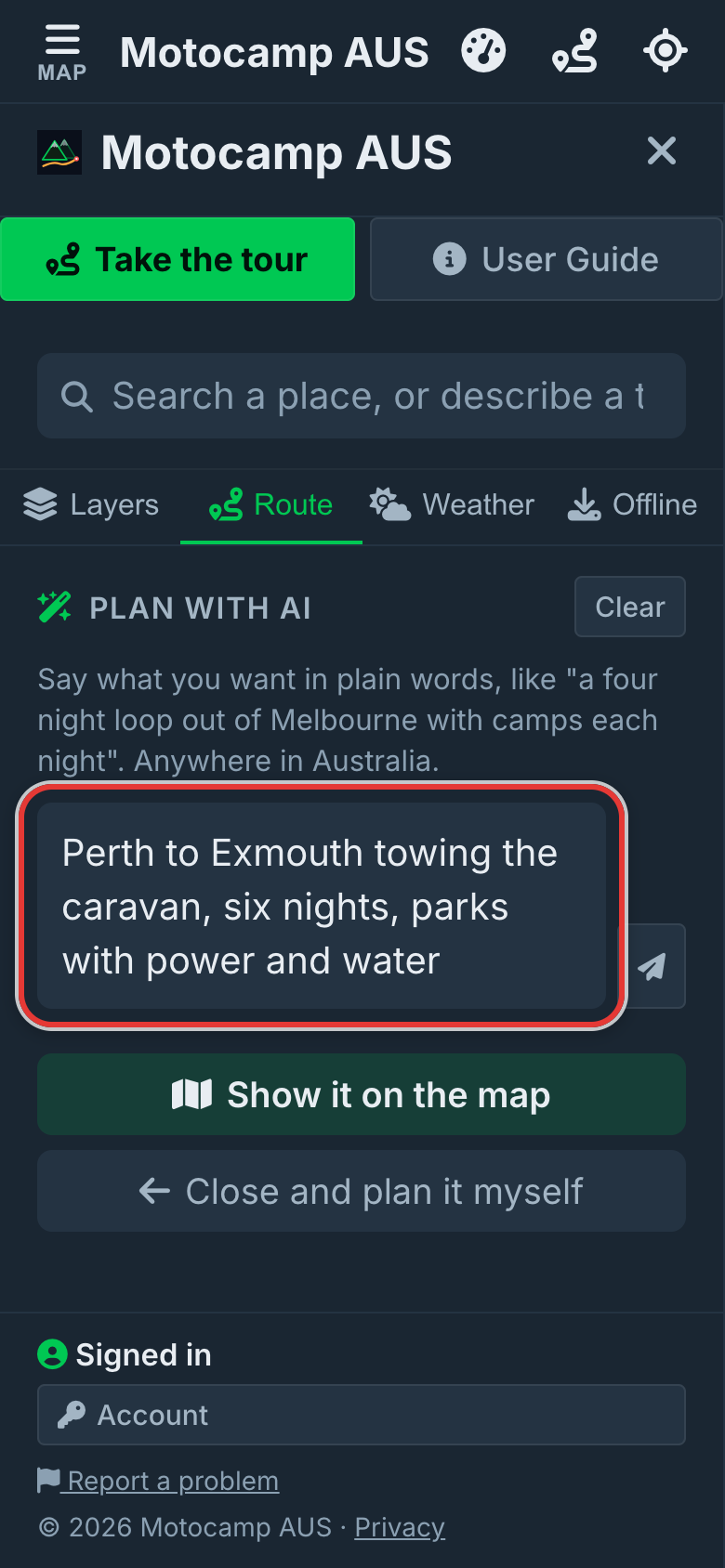
Then tap the paper plane button beside the box. On a keyboard, you can press Enter instead.
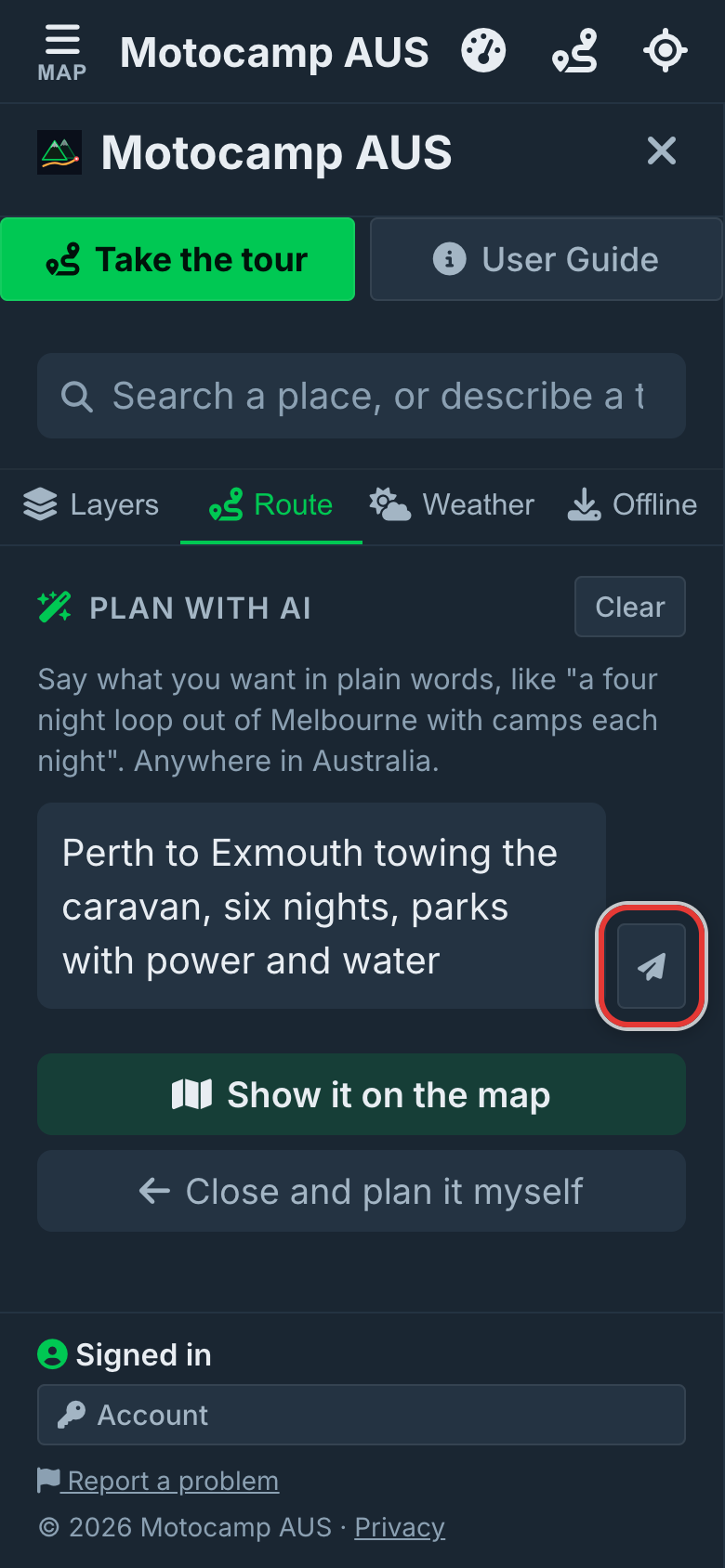
9.4What comes back
First you see three dots while it thinks. Then you get a short message and some cards.
Most of the time there are two or three cards. Each card is one way to do the trip. A card shows:
- A name for the trip.
- The distance, as a rough guess.
- The number of nights, or "day trip".
- The first day, if you gave dates.
- A one line summary.
- Read the cards.
- Tap the one you like.
The app then finds each place on the map. It fills in Start location, End location and the stops. Then it draws the line of the trip.
Sometimes it adds a short note under the cards. It may say a day is long. It may say a stop could not be found. It may say it left out a road that is shut on your trip day.
If the planner needs to know more, it asks one short question. This happens when it can't tell where you mean. It also asks when it does not know what you drive. Type your answer in the same box.
9.5Nights, day trips and dates
No nights given? Then it plans an easy day for your vehicle.
A caravan or motorhome is about 400 km a day. A bike or a 4WD is about 500 km. Dirt days are shorter.
Give a daily limit, like "no more than 5 hours a day", and it plans to that. After the line is drawn, the app checks each day. If one day is too long, it adds a night on the way and tells you.
A day trip has no nights. The planner keeps it to one day and shows no places to stay. Say how many nights if you want some.
You can give dates, like the day you leave and a place you must be on a date. The app works out where each night falls. It gives each dated place at least two nights.
Under the trip you'll also see What day are you leaving? Set it, and road closures are checked for that day.
9.6Places to stay each night
Once the line is drawn, the planner lists places to stay. They are sorted by night: Night 1, Night 2 and so on. Each one is near that night's stop.
Above the list it asks What sort of place each night? Tap one of these buttons to change the list for every night:
| Button | What you get |
|---|---|
| Best mix | A mix that suits your vehicle. |
| Free camps | Places to stay that cost nothing. |
| Holiday parks | Caravan and holiday parks, often with power. |
| Campgrounds | Public campgrounds, like national park ones. |
| Motels | Motels, guesthouses and bed and breakfasts. |
| Hotels | Hotels. |
| None, I have my own | No places to stay at all. |
In a caravan, a motorhome or a campervan, Best mix shows parks and campgrounds only. You are already towing or driving your bed. Other vehicles also get a short list of roofs for the night.
A place with a booking link opens its own page, so you can see the real price. Tap a pin on the map for more about a place.
None, I have my own turns the lists off. They stay off for your next trips too. To bring them back, tap any other button, or tap Show them.
9.7Ask for changes
The planner remembers what you have said in this chat. So you can ask for changes in plain words.
- Tap the box again.
- Type the change.
- Tap the paper plane.
Things you could write:
- Free camps instead.
- Add a night at Kalbarri.
- Make it one trip.
- Split that day.
- Go along the coast.
It sends back new cards. Tap the one you want.
If the line is much longer than you asked for, a note names the stop adding the most. Tap the button Plan it without, then the stop's name, to drop that stop.
9.8Show it on the map
On a phone, the planner covers the map. Show it on the map lets you look at the line, then come back.
- Tap Show it on the map at the bottom of the planner.
- Look at the line on the map.
- Tap Menu to go back to the planner.
Your chat, the cards and the places to stay are all still there. On a laptop, the map is already beside the planner, so this button is not needed.
9.9Keep the trip
Once the line is drawn, two big buttons show up.
- Save this trip keeps it in your Saved Routes. It is on your phone too.
- Email me this trip plan sends you a plan you can print. Set What day are you leaving? first, so the weather can be added.
The planning chapter tells you more about the trip plan.
9.10Edit stops and roads
This gives you the whole Route tab back, with the AI's start, stops and end in the Plan Your Route boxes. Your route stays on the map.
- Tap Edit stops and roads under Save this trip.
- Add, remove or change a stop under Plan Your Route, then tap Plan Route.
- For a different road, drag the line on the map onto it.
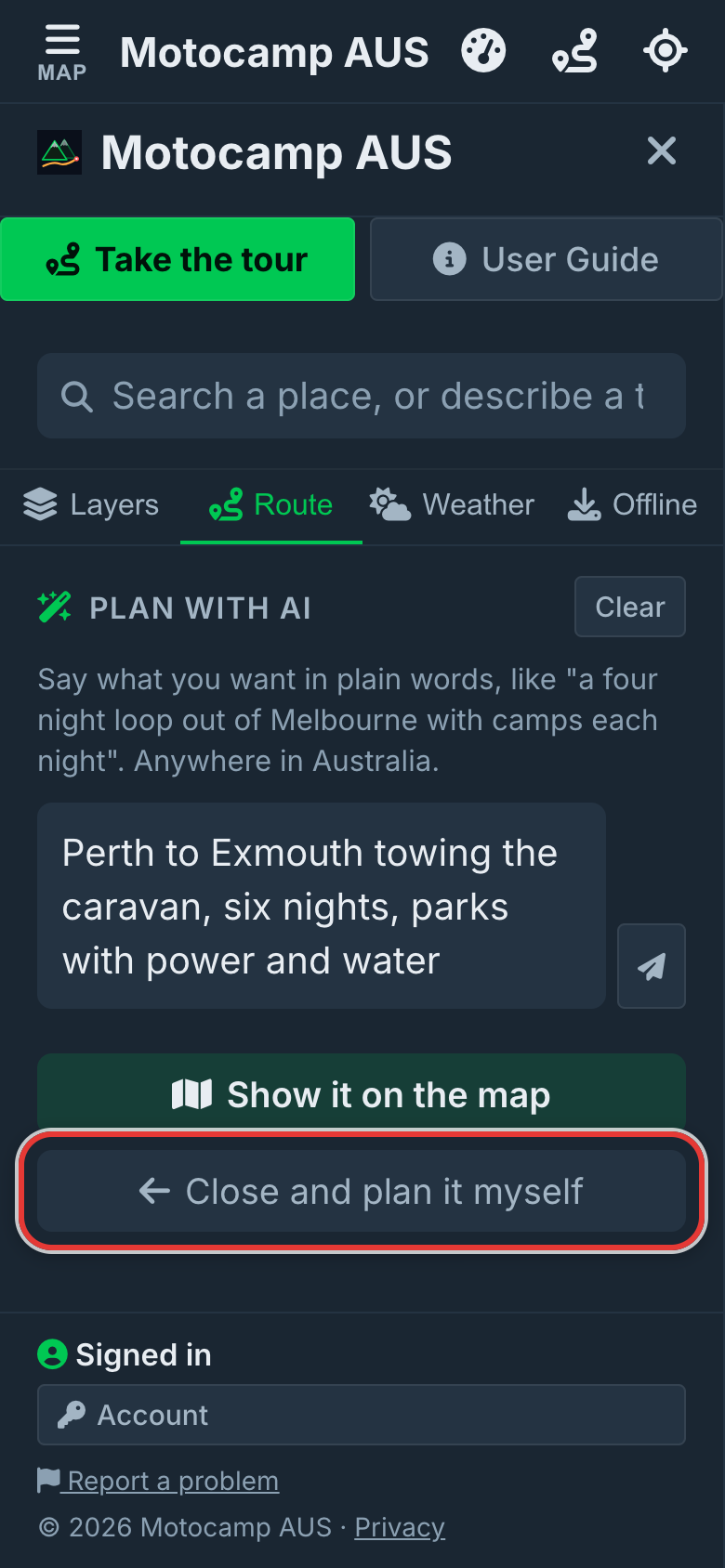
Close AI planner at the bottom does the same, and so does the Esc key on a keyboard.
9.11Start again with Clear
Clear sits at the top right of the Plan with AI box. It shows once you have typed something.
- Tap Clear.
Clear empties the chat and the box. It also takes away the route the planner drew. A route you made by hand before you opened the planner stays.
If the route is over 100 km and not saved, the app asks first: Save this route before you clear it? Tap Save, Don't save or Cancel.
9.12The daily limit
You can send the planner 15 messages a day. Every message counts, changes too. So do the few the planner sends for you when it adjusts a trip.
When you reach 15, the planner says:
"You've hit today's AI route limit (15). Try again tomorrow, or plan manually."
You can carry on the next day. Until then, plan by hand under Plan Your Route. Everything else in the app keeps working.
9.13Where it plans
It plans trips anywhere in Australia. Ask for a trip overseas and it says it can only help with trips in Australia.
The box itself says it too: Anywhere in Australia.
9.14It needs signal
Plan with AI only works with a phone signal or wifi.
With no signal, the planner says it can't reach the network. Planning by hand still works. So do your saved trips and the maps you keep on your phone.
Plan the trip at home or in town, then save it. You can then follow it with no signal.
9.15What it does not do
- It does not book anything. Book with the place itself.
- It does not answer questions that are not about a trip.
- It does not plan trips outside Australia.
- It does not ask how many nights. It works them out.
- It does not promise a place to stay has room.
- Its distances are guesses until the line is drawn.