
13Using it with no signal
Save the map to your phone before you go. Then the map, your route and Nav keep working where there's no signal.
13.1Why download maps
Out of town, your phone often has no signal. A map you keep on your phone still works there. So does your route, and Nav still tells you each turn.
Downloading means saving something to your phone so it works with no signal. Do it at home on wifi before you go. The files are big, so plug your phone in to charge if you can.
Step by step, with pictures: Keep the map with no signal
13.2The Offline tab
- Tap Menu at the top left.
- Tap Offline along the top of the menu.
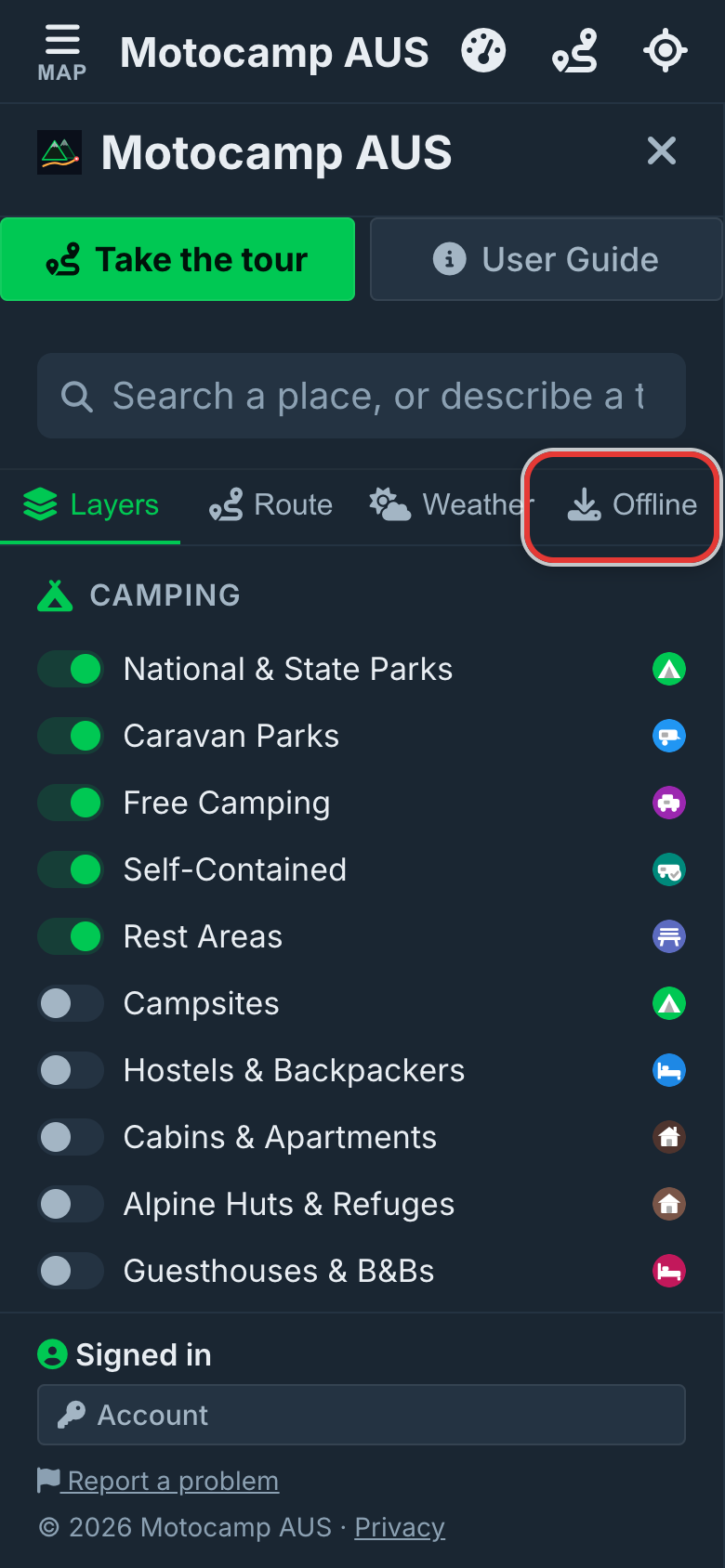
Here's the tab from top to bottom.
| Part | What it does |
|---|---|
| Offline Maps | The heading, and a line that says maps are stored in your browser. |
| Map source | Picks the online map or your downloaded map. Leave it on Auto. |
| The line under Map source | Says which map is in use right now. |
| Offline map pack | One card, Offline map + terrain, for the whole country. |
| Offline storage used | How much room your state downloads take, with a bar. |
| East Coast | One row for each state: Queensland, New South Wales, ACT, Victoria and Tasmania. |
| Central & West | South Australia, the Northern Territory and Western Australia. |
While a state or region downloads, a bar near the top shows how far it has got. A Cancel button stops it.
13.3Download the whole country
The Offline map + terrain card holds everything for the whole of Australia. That's the map with place names, the hills for 3D, and offline routing. 3D means the map can tilt to show hills and valleys. Offline routing means the app can plan a route with no signal. The card says ~3.7 GB, so check your phone has room.
- Tap Download on the Offline map + terrain card.
- Keep the app open until it says Offline maps ready.
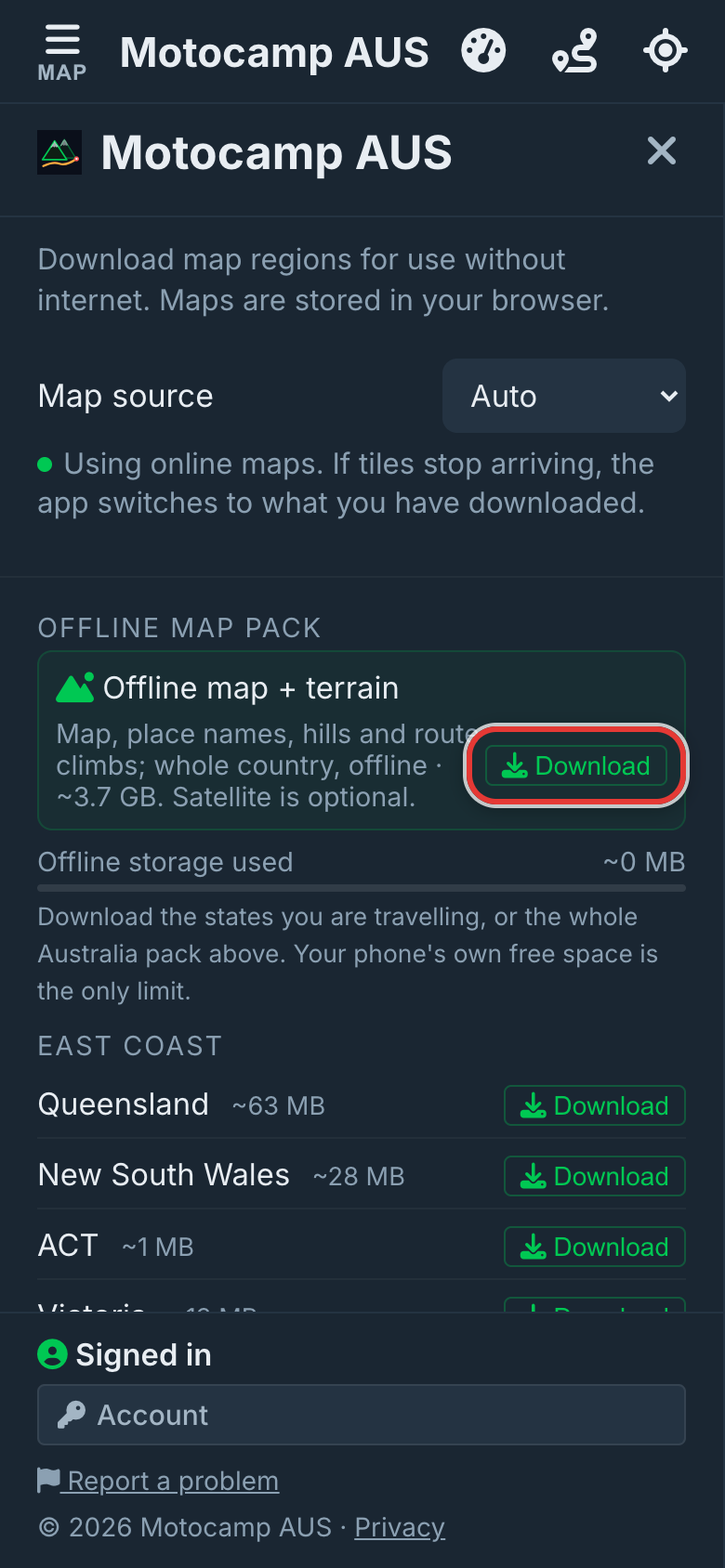
It saves the map first, then the routing, then the hills. So you can use the map before the rest arrives.
If it stops part way, the card says what's ready and what's still to come. Tap Get the rest to carry on. Nothing already saved is lost.
13.4Satellite photos
Satellite photos are pictures of the ground taken from space. They're optional. You don't need them for the map or for routes.
Once the whole country pack is saved, a line appears on its card: Satellite (optional). It shows the size, about 2.7 GB.
- Tap Download on the Satellite (optional) line.
- To take them off again, tap Remove on the same line.
13.5Download just one state
Short of room on your phone? Download a lighter map for just one state. These don't include offline routing or 3D hills.
- Find your state in the list.
- Tap Download beside it.
- Wait for a tick and the date.
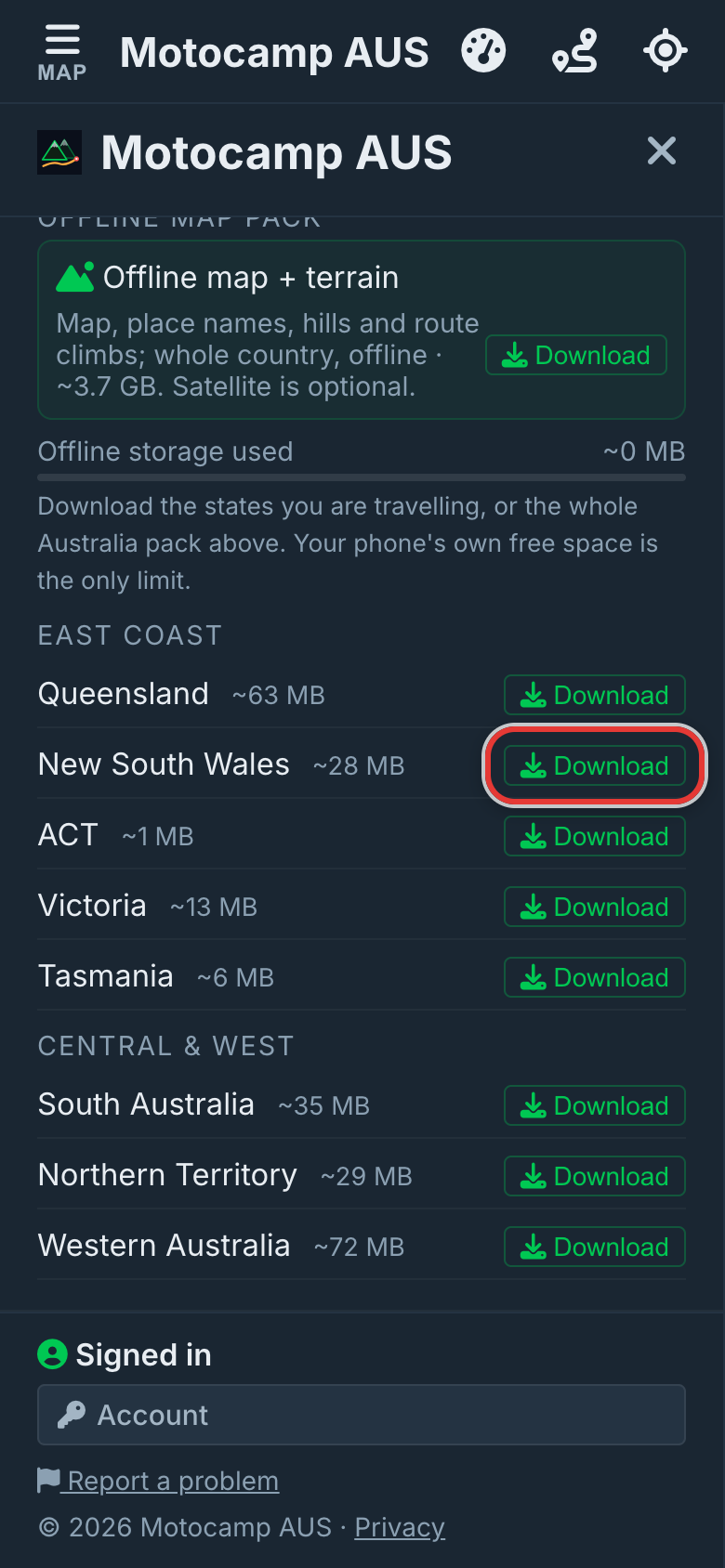
| State | Size |
|---|---|
| Queensland | ~63 MB |
| New South Wales | ~28 MB |
| ACT | ~1 MB |
| Victoria | ~13 MB |
| Tasmania | ~6 MB |
| South Australia | ~35 MB |
| Northern Territory | ~29 MB |
| Western Australia | ~72 MB |
These maps run out after 30 days. Then a clock shows, and a Refresh button takes the tick's place. Tap Refresh while you have signal.
If you already have the whole country pack, each row says In your Australia pack. You don't need them too.
13.6Map source
Map source picks which map the app draws. It's at the top of the Offline tab. It works for the main map and for Nav.
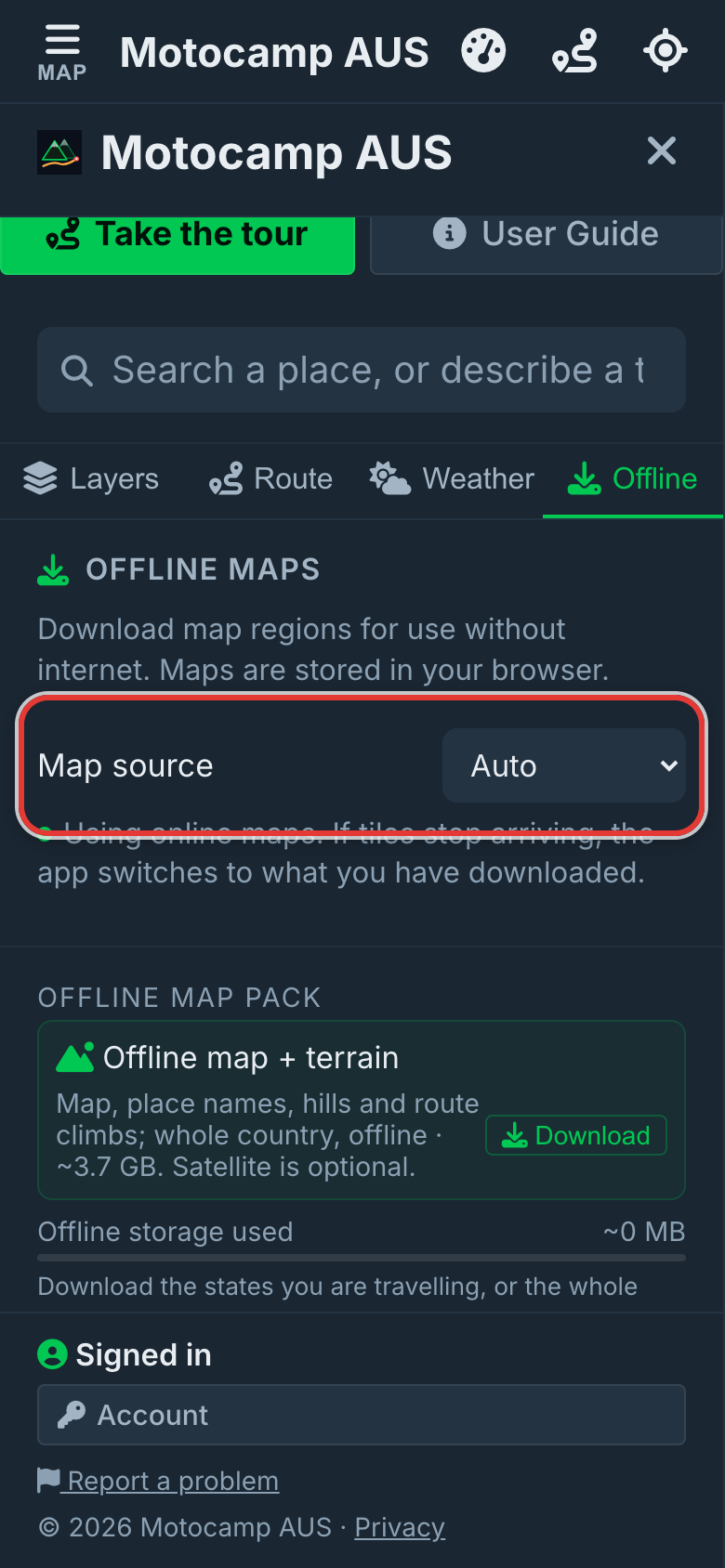
| Choice | What it does |
|---|---|
| Auto | Uses the online map while it loads. Switches to your downloaded map when nothing gets through, and back again later. This is the one to use. |
| Offline only | Always uses your downloaded map, even with signal. |
| Online only | Never uses your downloaded map. On weak signal the map may be slow or blank. |
On Auto, the app waits a few seconds for each piece of map. After three misses in a row, it switches to your downloaded map. It tries the online map again every 20 seconds.
13.7The download offer on your phone
On a phone, the app may offer to do the download for you. A card says Download the maps and route data for all of Australia, with the size. It says it's best done on wifi.
| Button | What it does |
|---|---|
| Download | Starts the download. You can keep using the app. |
| Not now | Closes the card. It won't ask again, so use the Offline tab later. |
| Stop | Ends a download part way. Next time you open the app, it offers what's missing. |
While it works, the card shows what it's saving. It also shows how far it has got.
If you close the app part way, it carries on from where it stopped next time you open it.
The app may also save the map near you by itself. A note says Getting the map for, then the area and its size. Tap Stop if you'd rather it didn't.
13.8What works with no signal
| Works with no signal | Needs signal |
|---|---|
| Your downloaded map and place names | Rain radar and the wind map |
| 3D hills, once the terrain is saved | Fresh forecasts and official warnings |
| A route you planned before | New fire and closure updates |
| Nav and its spoken turns | Plan with AI |
| Planning a new route, with offline routing saved | Search for a place you haven't seen before |
| Saved routes | Satellite photos, unless you saved them |
| The week of weather saved along your route | Planning a bicycle route |
| Closed roads, from the list saved with your map | Sending a new place you add (it waits and sends later) |
With no signal, search looks only at what's on your phone. That's your saved spots, recent places, campsites already on the map, and towns. You can also paste in a map position, written as two numbers.
If you've signed in on this phone before, the app opens with no signal too.
13.9Planning and Nav with no signal
With offline routing saved, Plan Route works with no signal. The Route Summary says the route was planned on your device. It also says live closures and traffic aren't included.
A caravan or motorhome route still sticks to main roads. It keeps off roads that are too low or too narrow for you.
| If you see | What to do |
|---|---|
| Too far to plan offline in one go | Add a stop about half way. Each part then plans quickly. |
| A place is far from any road in your packs | Move that pin onto a road and plan again. |
| No routing pack on this phone yet | Tap Open the Offline tab, and download when you have signal. |
| Bicycle routing needs signal | Bicycle routes need signal. Plan it before you go. |
In Nav, if you leave the route, the app plans a new one on your phone. Without offline routing, it can't. The line turns into amber dashes, a note says you're offline, and a voice says No signal. Cannot reroute.
Get back on the line, and Nav carries on. When signal returns, it plans a new way for you.
Step by step, with pictures: Keep the map with no signal
13.10Storage, updates and removing downloads
| Download | Size |
|---|---|
| Offline map + terrain, whole country | ~3.7 GB, as the card says. The map is about 1.3 GB and the routing about 100 MB. |
| Satellite (optional) | About 2.7 GB |
| One state | 1 MB to 72 MB |
Downloads are kept in your phone's browser storage. If your phone runs out of room, a message says so. Free up space, then tap Download again.
- Find the download on the Offline tab.
- Tap the bin button beside it to remove it.
When a newer version of your download is ready, a card says A newer offline pack is ready. Tap Update to get it, or Later to keep what you have. The Offline tab also shows a line saying has been updated, with an Update button.