Navigation guides you along your trip, turn by turn. This chapter shows how to start it, what each part of the screen means, and how to end it.
10.1What navigation does
Navigation guides you along your trip, one turn at a time. The map fills the screen and turns as you turn. A voice tells you each turn before you reach it.
It uses GPS. GPS is how your phone works out where it is, from satellites. It works with no phone signal.
WarningSet up the trip before you move. Put the phone in a holder where you can see it. Don't tap the screen while you drive.
10.2Start a trip
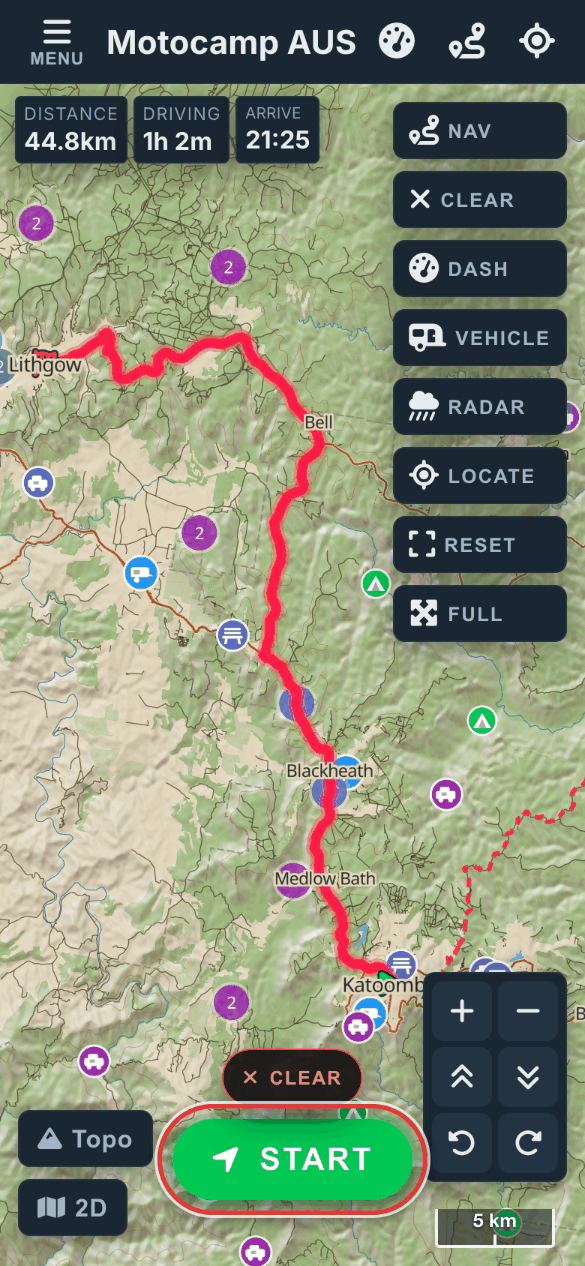
Plan a route first. The Start button then shows on the map.
Plan your trip in the Route tab.
Tap Menu to close it.
Tap the green Start button on the map.
The Start button on the map, once a route is planned.
There is also a Start button at the top of the Route Summary, in the Route tab.
Navigation always starts from where you are now. If you are far from the start you planned, the app asks Start from here? first.
Read the message.
Tap Start from here to go, or Back to stay on the map.
If you are already moving, the app skips this question and opens at once. The first time, your phone may ask to use your location. Tap Allow.
10.3Navigate with no planned route
You can open navigation with no route. It then asks where you are going.
Tap Nav in the row of buttons on the right of the map.
Type a place in the box that says Where to?
Tap the place you want.
The app plans a route from where you are, for your vehicle. Then it starts guiding you.
Before you type, the box lists places you used lately. With no signal, it still finds your saved spots, recent places and camps already on your phone.
Just want the map to follow you? Tap the X on the box. It stays hidden until you close navigation.
10.4Know the navigation screen
Here is navigation open on a planned route. The numbers match the table below.
No.
Part
What it shows
1
Turn arrow
Which way the next turn goes. Its box changes colour as the turn gets close.
2
Distance to the turn
How far to the next turn, in metres or kilometres.
3
Road name
What to do and the road to take, such as Turn right onto a named road.
4
Trip bar
Distance left, time left, and the clock time you should get there.
5
Clock
The time now. Navigation fills the screen, so it hides the phone's own clock.
6
Compass
The way you are heading, in letters such as N or SW.
7
Speed
How fast you are going, in km/h, from GPS.
8
Speed limit sign
The posted limit for the road you are on, when the map knows it.
9
Height
How high you are above the sea, in metres, from GPS.
10
Zoom
+ and − make the map closer or further away.
11
END
Closes navigation.
12
VOICE
Turns spoken directions off and on.
13
2D or 3D
Flat map, or a 3D view with the hills standing up.
14
TOPO or SAT
The map with roads and contour lines, or photos taken from space.
The four big buttons along the bottom are END, VOICE, 2D and TOPO. A button lights up green when it is not in its usual setting.
10.5The turn card
The card at the top shows your next turn. It has an arrow, the distance to the turn and the road to take.
When you set off, it says Head out. If the first turn is close, it shows that turn at once.
The distance counts down as you go. Near the turn, the arrow's box changes colour.
10.6Distance, time and arrival
The trip bar at the top right shows three things. First, the distance left. Then, the time left. Last, the clock time you should get there.
The time comes from the planned route. As you drive, the app learns your own pace and adjusts it. Stops for fuel or food do not count as slow driving.
When you get there, the bar says Arrived.
10.7Clock, compass and GPS notes
The clock shows the time now. It changes on the minute, like your phone's clock.
The compass shows the way you are heading. It uses eight points, such as N, NE or SW. Its green needle turns with you.
Under trees or in a deep valley, GPS can get vague. A small note then says Weak GPS. If GPS stops for a while, it says No GPS. The note goes once GPS is good again.
10.8Speed, speed limit and height
Your speed shows at the bottom left, in km/h. It comes from GPS.
The speed limit sign sits in the middle of the bottom. On a planned route, the limit comes from the route. Off a route, the app looks up the road you are on. That look up needs a phone signal.
On a town street with no limit in the map, the sign may show the usual town limit of 50. On a big road with no limit in the map, the sign stays blank.
Your height above the sea shows at the bottom right, in metres. It comes from GPS, so it can be a little off.
CautionThe sign comes from map data. Always follow the real signs on the road.
10.9Zoom in and out
The app zooms the map for you. It shows the road close up when you go slowly. It shows more of the road ahead when you go fast.
Tap + to see the map closer.
Tap − to see more of the map.
The app keeps your choice. It still zooms out with speed, but from your level. The buttons turn green while your choice is on.
To hand the zoom back to the app, press and hold + or − for about half a second. You can also pinch the map with two fingers.
10.10The buttons along the bottom
Button
What a tap does
END
Closes navigation at once. Your route stays on the map.
VOICE
Turns spoken directions off. The button then says MUTED. Tap it again to turn them back on.
2D
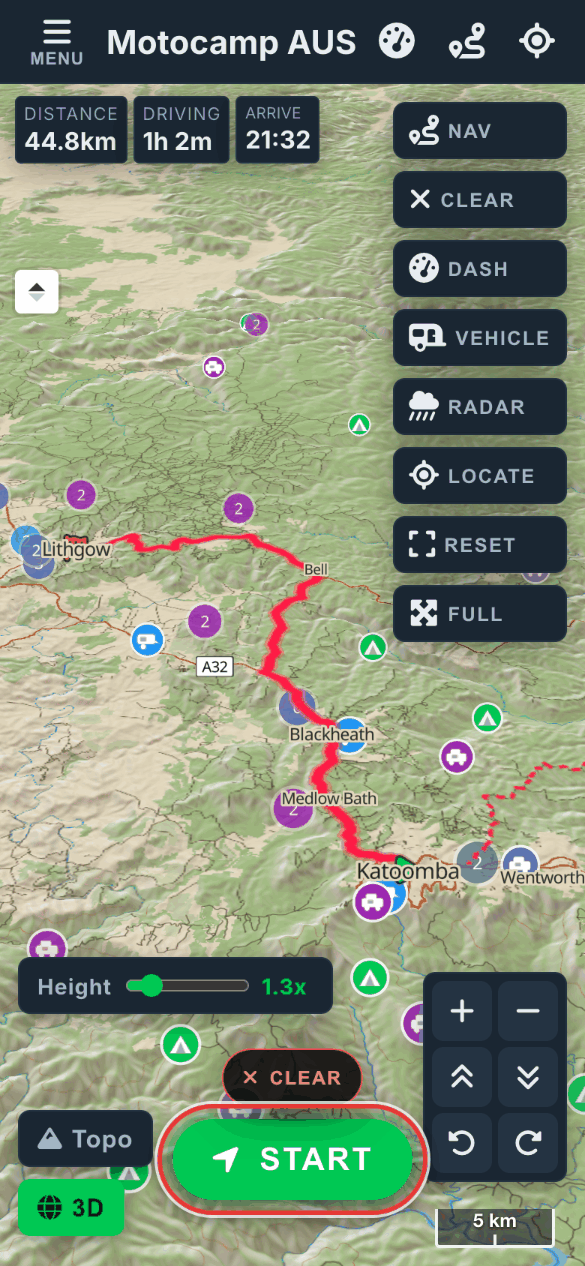
Switches to 3D. The button then says 3D and lights up. Tap it again for the flat map.
TOPO
Switches to the satellite map. The button then says SAT. Tap it again for the topo map.
3D means the map tilts, so hills and valleys stand up. You see the road from just behind you. A topo map shows roads, hills and contour lines. A satellite map shows photos taken from space.
Navigation remembers your 2D or 3D choice and your map choice for next time.
With 3D on before you tap Start, navigation opens in 3D.
A voice tells you each turn. It speaks at 3 kilometres when you are going fast, then at 800 metres, then at 150 metres. Then it speaks once more at the turn.
It uses the voice built into your phone, so it works with no signal. It also says Rerouting, You have arrived, and camera and speed limit heads-ups.
Tap VOICE on the navigation screen to mute it.
Tap MUTED to bring it back.
You can also change the voice before you go.
Tap Menu, then the Layers tab.
Find Voice Guidance.
Use the Speak turn directions switch to turn the voice on or off.
Pick a voice from the Voice list.
Tap Test to hear it.
NoteWhich voices you get depends on your phone.
10.12Speed Limit Alert
Speed Limit Alert gives one quiet heads-up when you are well over the posted limit. It is on to start with.
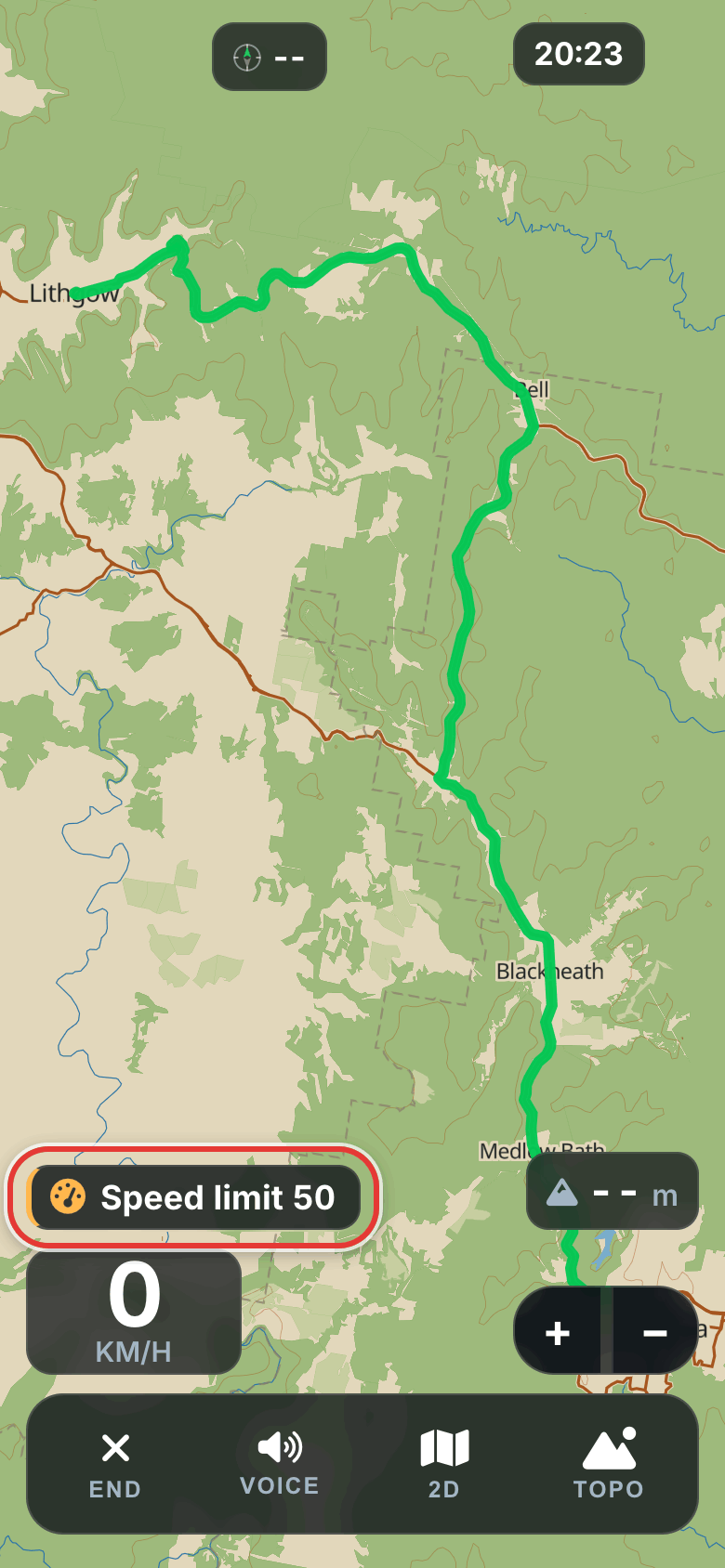
Stay over by more than your chosen amount for about 4 seconds. A small note then shows the limit above your speed, such as Speed limit 50. A soft chime plays and the voice says the limit. The note goes after 5 seconds.
The quiet note above your speed.
It comes again every 90 seconds while you stay over.
Tap Menu, then the Layers tab.
Find Speed Limit Alert.
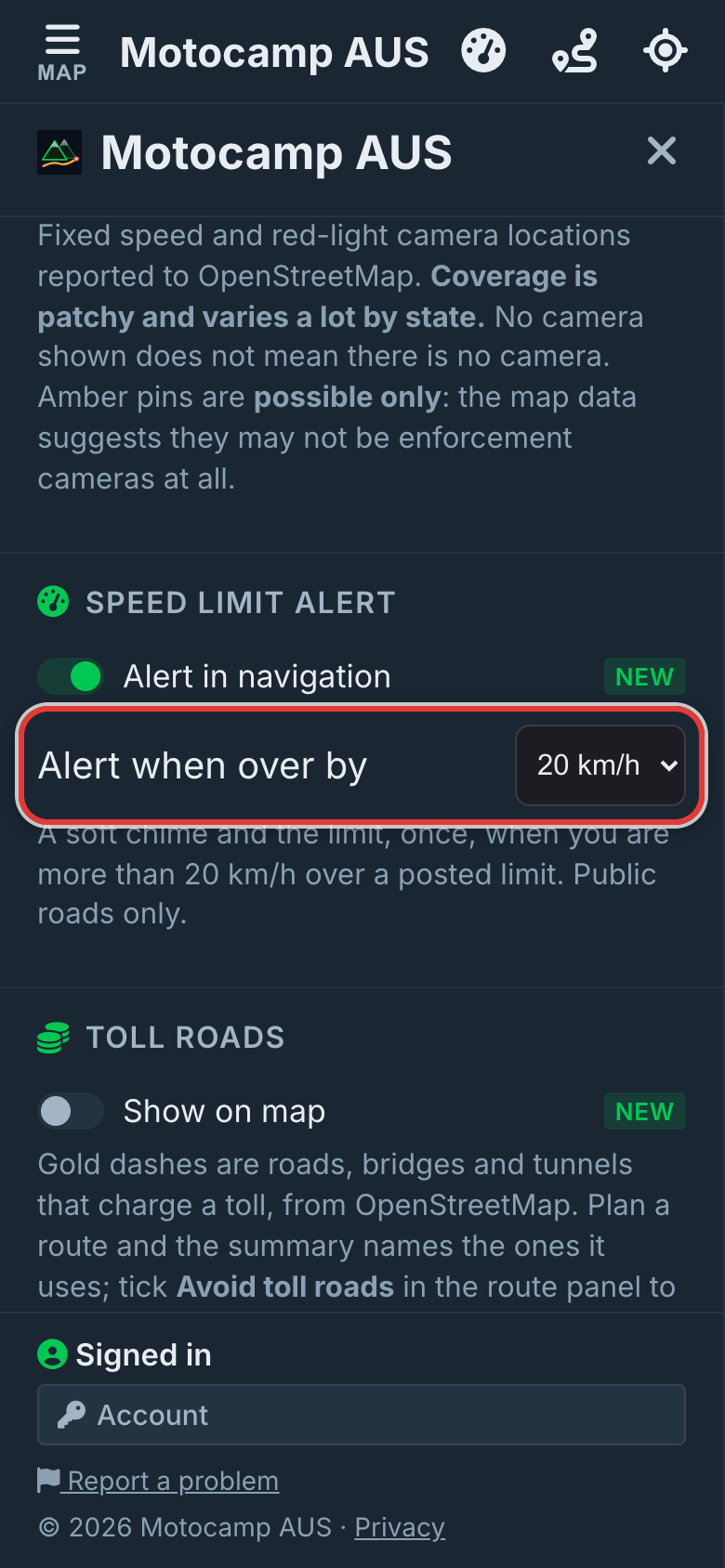
Tap the box beside Alert when over by.
Pick 5, 10, 15 or 20 km/h.
Alert when over by, in the Layers tab.
It starts at 20 km/h. So 70 in a 50 zone stays quiet, and 71 brings the alert. Use the Alert in navigation switch above it to turn the alert off.
NoteIt only counts posted limits on public roads. It stays quiet on 4WD tracks, private roads and roads with no limit in the map. A weak GPS signal never sets it off. With VOICE muted, you get the note with no sound.
When your route passes a camera, a card shows under the turn card. It names the kind of camera. It says how far away it is and the limit there. You hear three quick beeps, and the voice says what is ahead.
It comes about 16 seconds before you reach the camera. A camera marked "Possible" is one the map is not sure about. Its beeps are softer.
Tap Menu, then the Layers tab.
Find Speed Cameras.
Use the Alert in the drive dash switch to turn these heads-ups off or on.
Show on map, just above it, puts the cameras on the main map as pins.
CautionCamera spots come from map data that people add to. How many are on the map changes a lot from state to state. No camera on the map does not mean there is no camera.
10.14Worth a Stop heads-ups
Worth a Stop tells you about a great place just off your route. A card shows under the turn card, with two soft notes. It comes about a minute before you get there.
The card shows the name, what kind of place it is, how far ahead, and which side of the road.
It only does this for well known places, ones with a name and a story in the map. To start with, that means viewpoints, waterfalls, hot springs, natural wonders and ghost towns. Turn on another kind in the Worth a Stop list, and it joins in.
Tap the card to hide it for the rest of this trip.
To stop these heads-ups, tap Menu, then Layers. Under Worth a Stop, turn off Alert in navigation. The small dots on the map still show.
NoteA camera card always comes first. While one shows, the Worth a Stop card waits.
10.15Road closed part of the day
Some roads close for part of the day. If your route uses one, you hear about it about 30 minutes before. A note says the road is closed part of the day, and to check the times.
10.16If you leave the route
Take a different road, and the app plans a new way from where you are. The turn card says Rerouting, and the voice says it once. A few seconds later, the new line shows.
It only does this while you are moving, and only after you are clearly off the line. Stop for a photo just off the road, and it waits.
The new route goes from where you are to your end point. Stops you have already passed are left out.
With no signal, the app can still plan a new way if the routing pack is on your phone. You get it from the Offline tab.
With no signal and no routing pack, the app can't plan a new way. The line turns orange and dashed. A note at the top says you are offline and can't reroute. The voice says No signal. Cannot reroute. Drive back to the line, or wait for signal, and it turns green again.
10.17Arriving
You have arrived when you are within about 50 metres of your end point. Pulling in slowly, 100 metres is close enough. The voice says You have arrived.
A card then takes the place of the turn card. It says Arrived and the name of the place. It shows:
A small chart of the hills on your route, with how far you went up and down.
travelled: how far you went.
moving: how long you were moving. Stops are left out.
average: your average speed while moving.
For a very short trip, the time and average are left off.
Button
What a tap does
End trip
Clears the route and closes navigation.
Dismiss
Hides the card. The route stays on the map, and navigation stays open.
10.18End navigation
Tap END at the far right of the bottom row.
Navigation closes at once, with no question. The voice stops. Your route stays on the map, so you can tap Start again later.
To take the route off the map, tap Clear on the map, or Clear in the Route tab.
10.19The Dash
The Dash is a second screen for the road. It looks like the dials in a car. It is not the same as navigation.
Tap Dash in the row of buttons on the right of the map.
Tap the X at the top to close it.
Part
What it shows
Clock
The time now.
Height
How high you are, in metres.
Heading
The way you are going.
Temperature
The air temperature where you are, in °C.
Air pressure
In hPa, with an arrow for rising or falling. Falling can mean the weather is turning.
Wind
Wind speed in km/h, with an arrow for its direction.
RAIN
A small rain radar for 60 km around you. Rain radar shows where rain is falling now.
Speed
Your speed in the middle, with your top speed under it.
Lean
Green arcs show how far the vehicle leans or tilts, with the biggest lean.
Next turn
The next turn, when you have a route.
Small map
Tap it to pick a new place to go.
Home
Plans a route home on sealed roads. Set your home address in the Route tab first.
Bottom row
Trip distance, how steep the road is, average speed and top speed.
The Dash also speaks your turns, and shows the same Arrived card at the end.
NoteOnly one of the two can be open. Opening navigation closes the Dash. On a laptop, the Dash shows a short note instead, because it needs a phone.
10.20Screen and battery
While navigation is open, the app keeps your screen on. If you leave the app and come back, it keeps it on again.
Navigation fills the whole screen, so the address bar is out of the way.
To save battery, the app draws the map no more than 30 times a second. The main map behind it rests until you close navigation.
3D uses more battery than the flat map.
CautionA screen kept on all day uses a lot of battery. For a long day, plug the phone in.
10.21Navigate with no signal
Navigation works with no phone signal if you download your area first. Use the Offline tab while you have signal.
The topo map comes from the map you keep on your phone.
The satellite map needs signal, unless you have also downloaded the satellite pack. If not, you see the topo map.
GPS, the turn card, the voice and the arrival card all work.
New routes when you leave the line need the routing pack on your phone.
Speed limits on a planned route still show. Off a route, the sign needs signal.
NotePlan the route while you have signal. Then start it whenever you like.
10.22What navigation does not do
It does not show which lane to be in.
It does not show traffic.
It does not show rain radar on the map. The Dash has a small one.
It does not take you to the start you planned. It starts from where you are.
It does not know about every closure or camera.
WarningThe app is a guide. Road signs, closures and the people directing traffic always come first.
10.23The Dash: Home and the compass
Tap DASH on the map to open the Dash. It shows your speed, height and weather on one screen.
The Home button plans a route home on sealed roads. First save your home in the Route tab. Tap Save Home there. Until you do, the button just says Home.
The compass can point to any place. Tap the place name under the compass. Type an address, or tap Pick on map and tap the spot. The arrow then points that way and shows how far it is.
Tap DASH.
Tap the name under the compass.
Type a place, or tap Pick on map.
To stop, tap Clear.
NoteThe compass shows a straight line to the place, not the road. Use Nav to follow roads.