
A quiet heads-up when you're over the limit
You drive off the highway into a country town. The limit drops before you see the sign. Speed Limit Alert shows you the limit and says it.
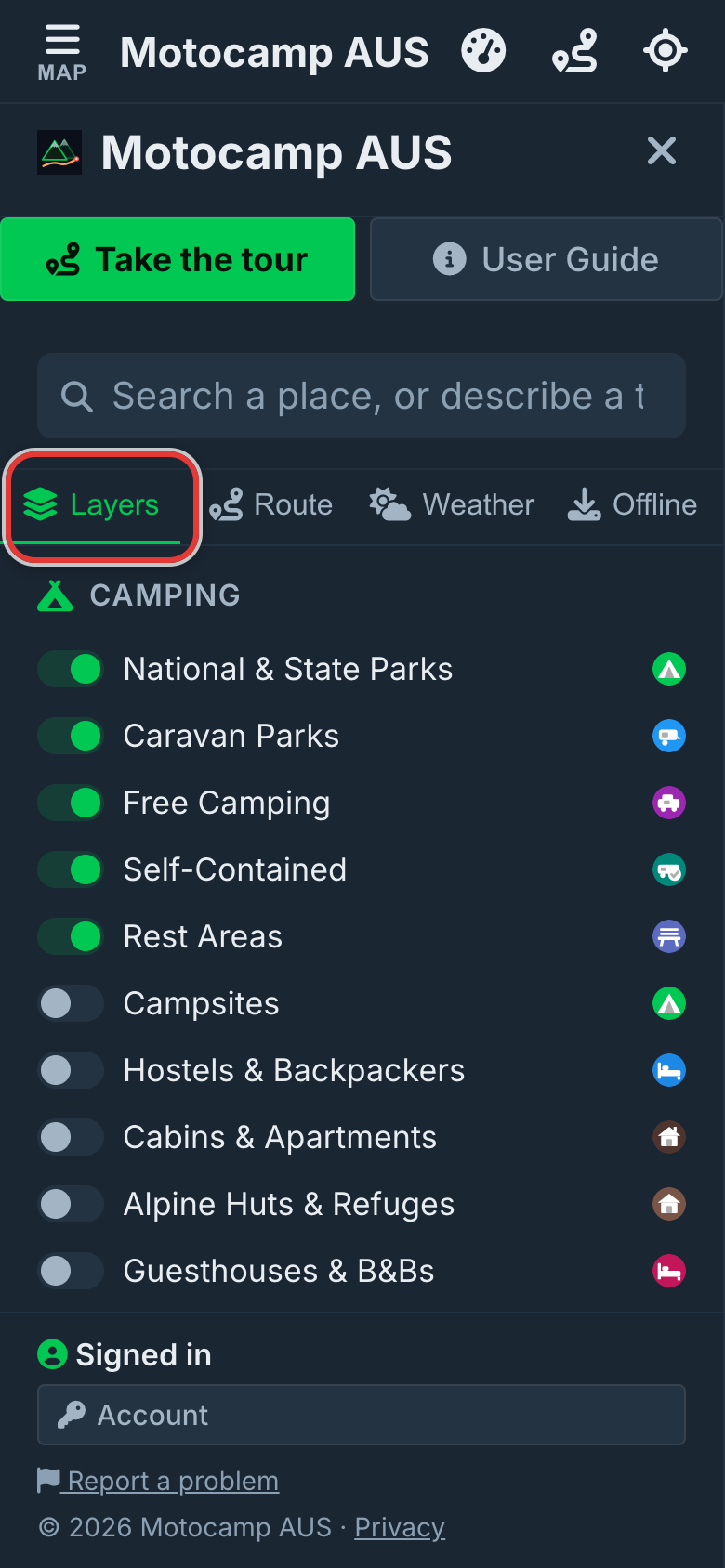
1Open Menu, then Layers
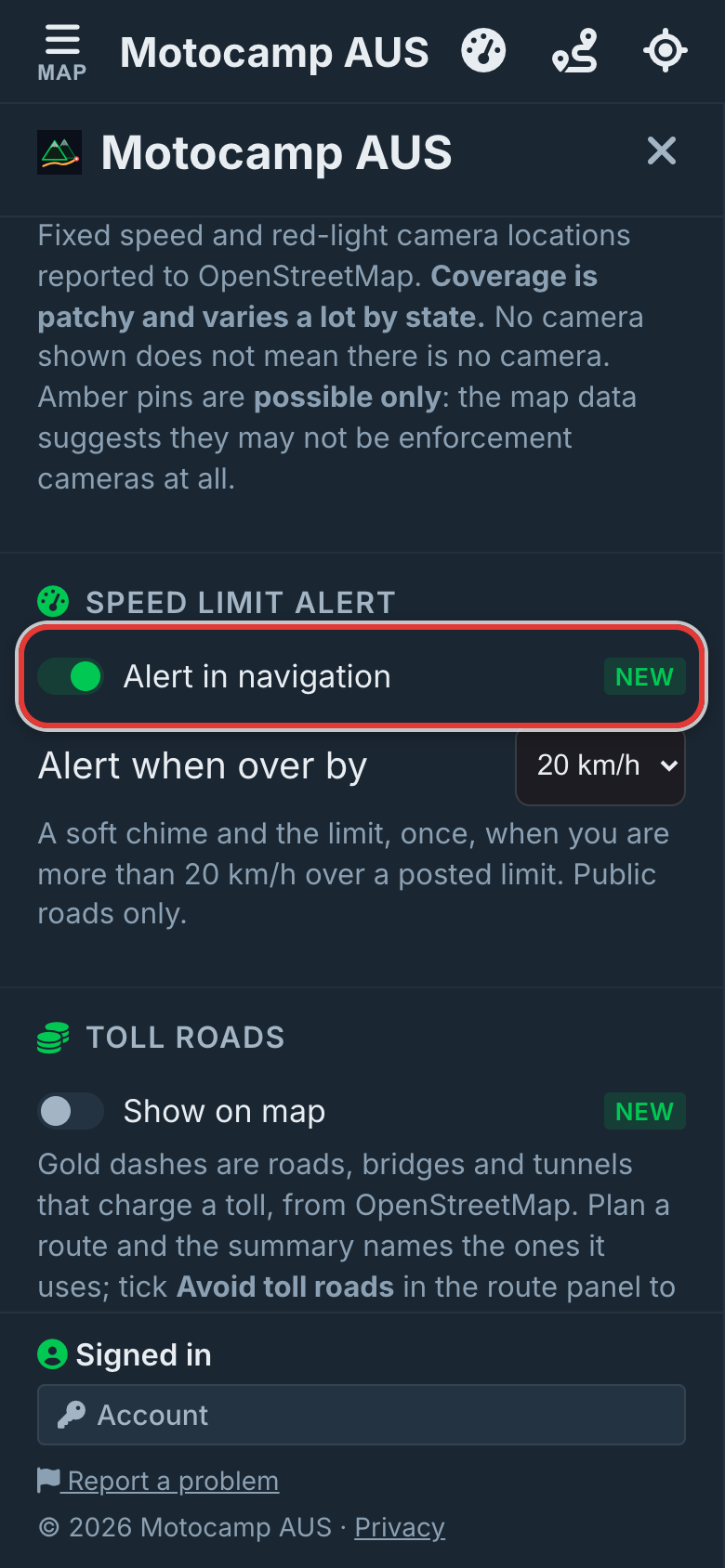
Tap Menu at the top left of the map. Then tap the Layers tab. Scroll down past Speed Cameras. Stop at Speed Limit Alert. The alert is already on, so there's nothing to switch on. On a laptop, the menu is always open on the left.
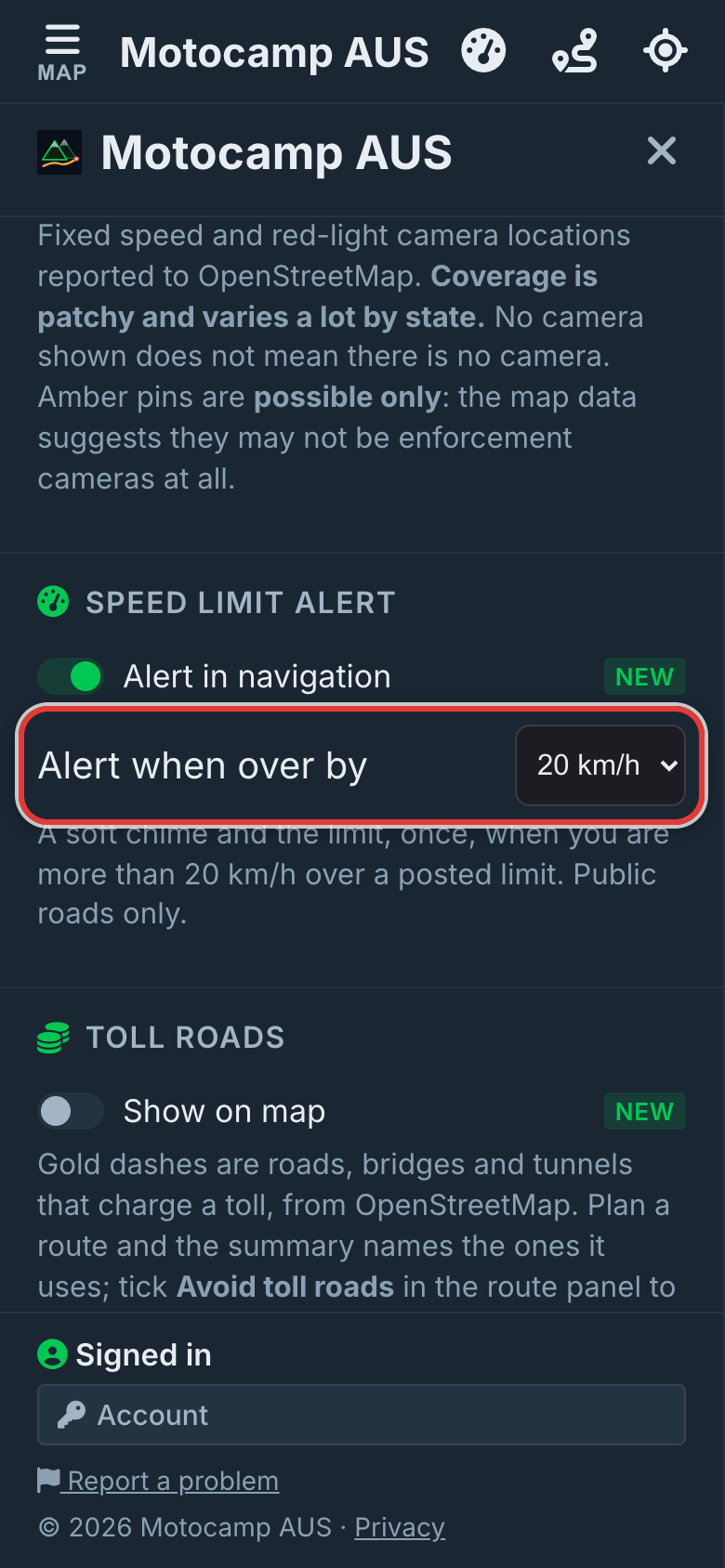
2Choose Alert when over by
Tap the box next to Alert when over by. Pick 5, 10, 15 or 20 km/h. It starts at 20 km/h. Say the limit is 50 and you pick 20. At 70 it stays quiet. At 71 you get the alert. The line under the box shows your number. The box turns grey when the alert is off.
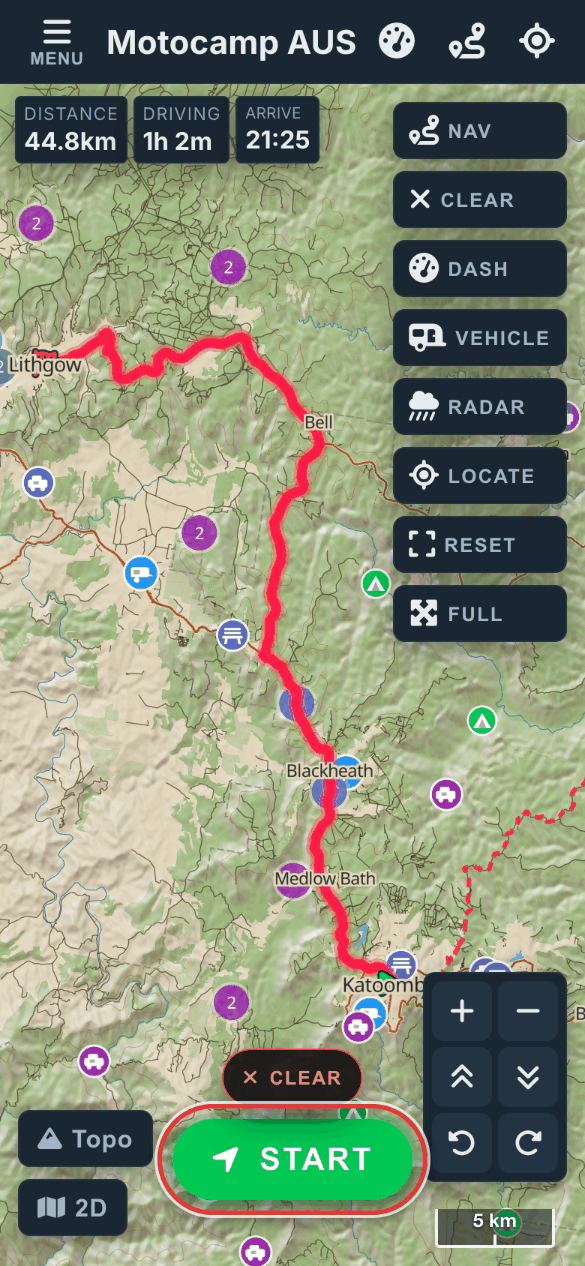
3Plan a route, then tap Start
The alert works in navigation. That's the screen that guides you turn by turn. First, plan your trip in the Route tab. Then tap the Start button on the map. Are you away from the start you planned? Then the app asks first. Tap Start from here. The app now guides you from where you are.
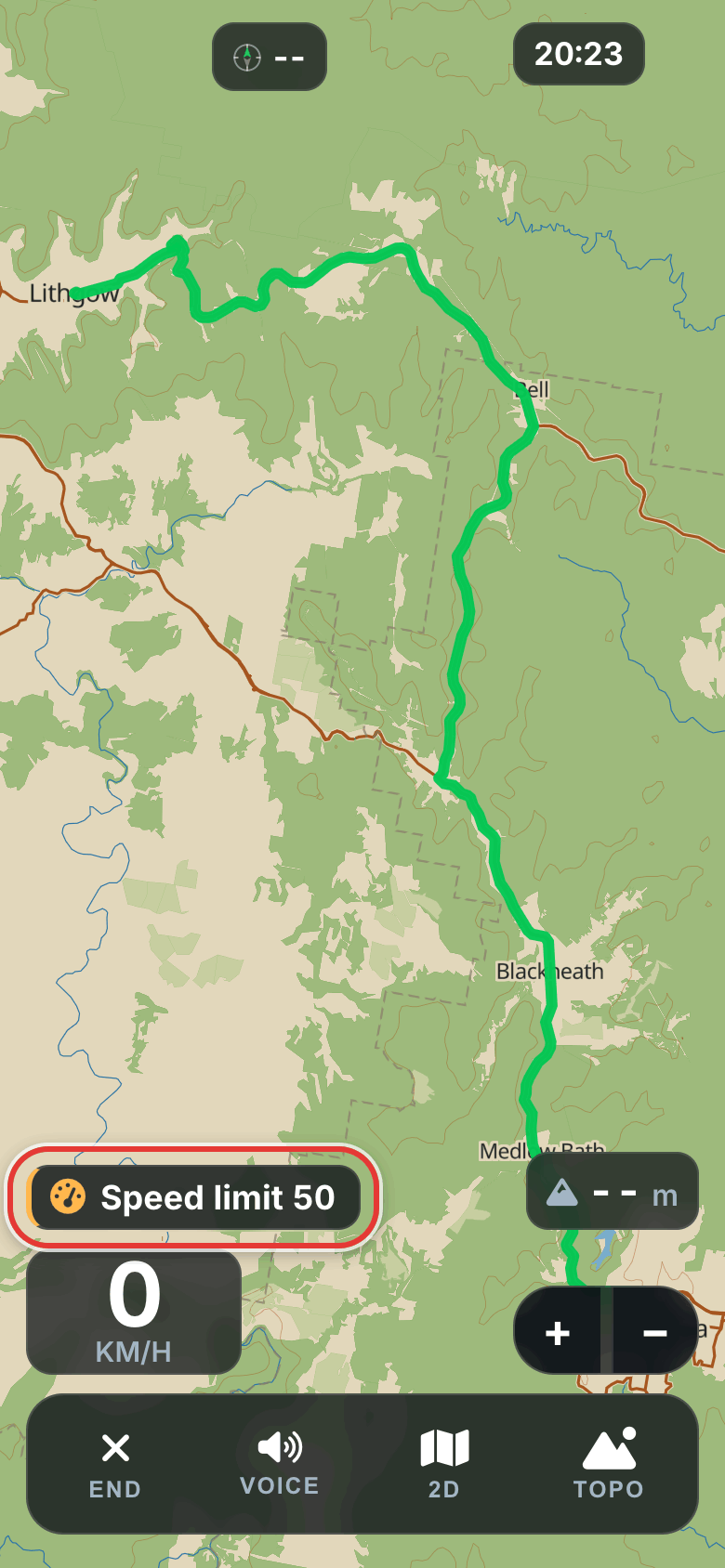
4See the limit, hear it
Go more than your chosen amount over a posted limit. Stay there for about 4 seconds. A small box then shows the limit, just above your speed. It says something like Speed limit 50. A soft chime plays. Then a voice says the limit. The box goes away after 5 seconds.
5Turn it off any time
Open Menu, then Layers again. Under Speed Limit Alert, tap the Alert in navigation switch. That turns the alert off. Tap it again to turn it back on. The app remembers this on your phone or computer. Want the box but no sound? In navigation, tap the VOICE button. That also stops the spoken turns.
Good to know
The alert only works in navigation. It only uses limits that are posted and shown in the map. It only works on public roads. It stays quiet on 4WD tracks, service roads and private roads. It also stays quiet where the map has no posted limit. While you stay over, it comes again every 90 seconds. Away from a planned route, the app checks the limit as you go. That needs phone signal. A weak GPS signal never sets it off.
Also in the app: maps that work with no signal, campgrounds and free camps, and Plan with AI. It plans routes for eight kinds of vehicle, from an enduro bike to a 10-metre motorhome.