
Plan and drive with 3D maps
A flat map can't show you how steep a track down a range is. One tap shows the land in 3D. You can tilt it and turn it. Then you can plan your trip with the hills in view.
1Tap 2D to switch to 3D
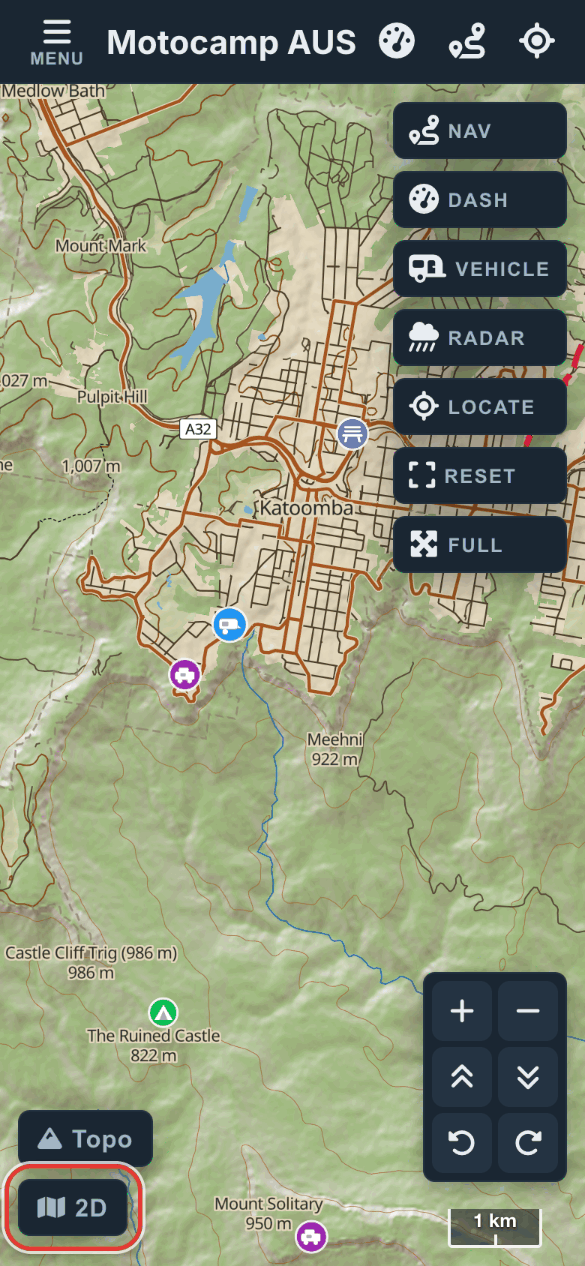
Close the Menu so you can see the map. Find the button at the bottom left. It says 2D while the map is flat. Tap it once. It changes to 3D and turns green. The map tilts, and the hills stand up. Tap it again to go back to the flat map.
2Tilt, turn and zoom
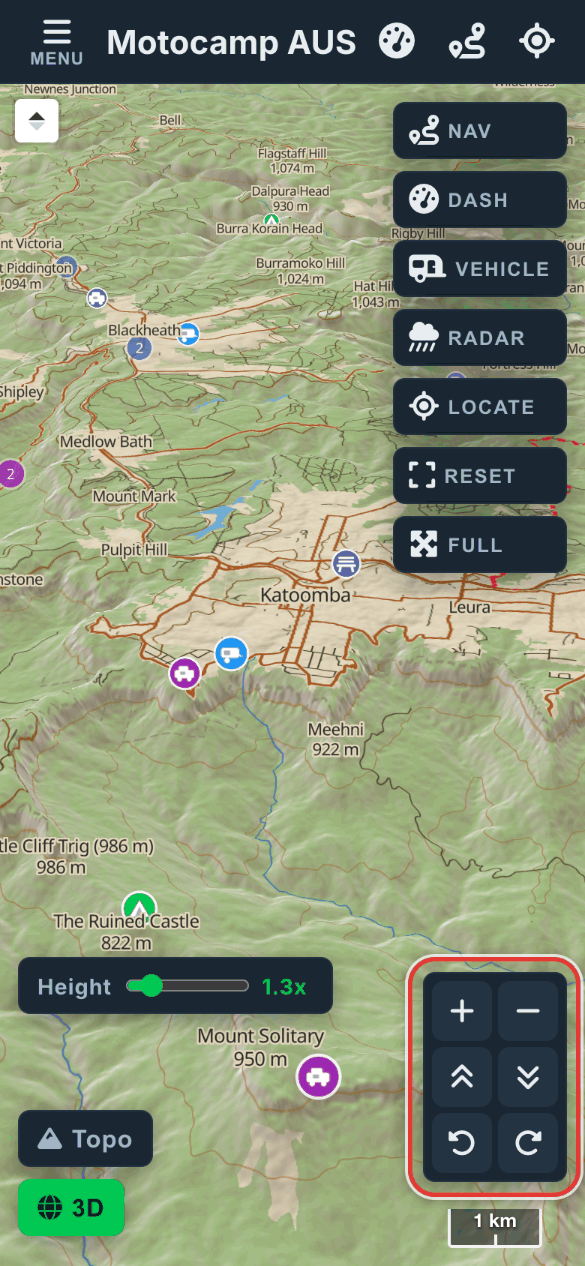
Use the buttons at the bottom right. Plus zooms in and minus zooms out. The double arrows tilt the map or flatten it. The two round arrows turn the map left or right. You can also use two fingers. Drag them up or down to tilt. Twist them to turn. Tap the compass at the top left to face north again.
3Set the Height slider
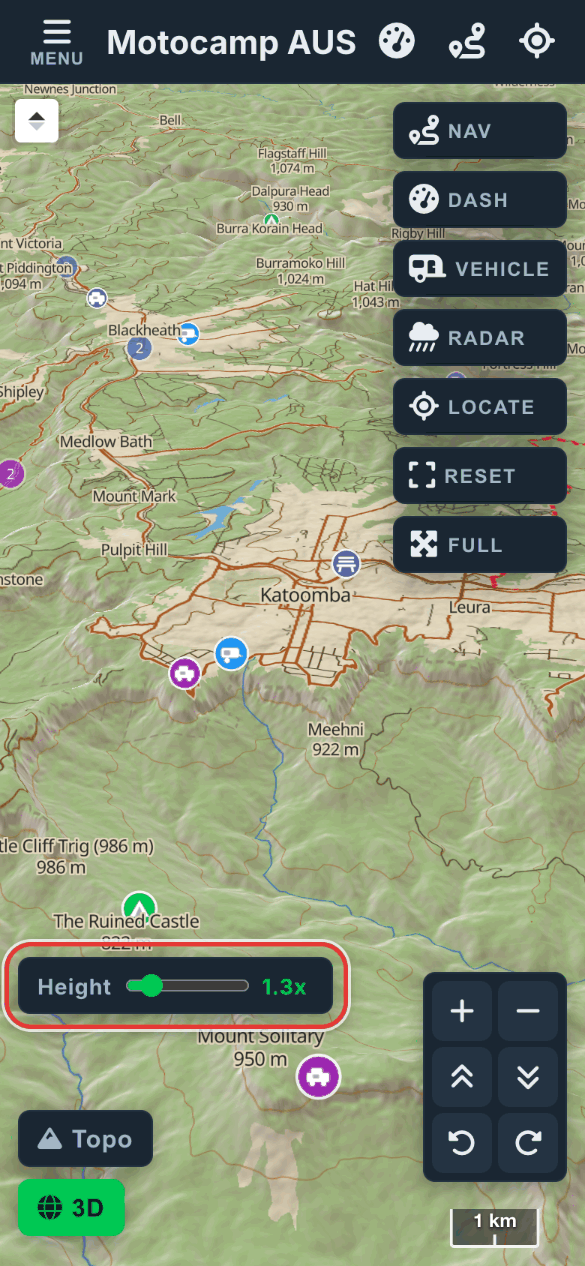
When 3D is on, a Height slider sits above the Topo button. At 1x, the hills show at their true height. The app starts at 1.3x so slopes are easy to see. Slide it up to 3x to make small hills stand out. The app remembers your choice.
4Switch Topo to Sat
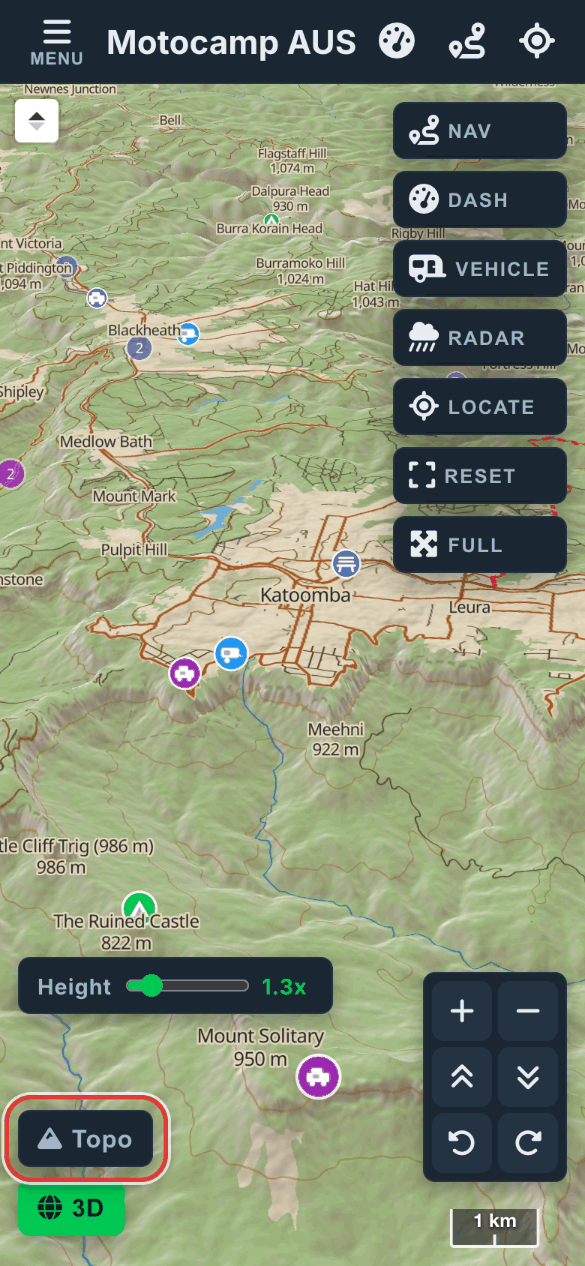
The button above 2D or 3D shows which map you are on. Tap Topo to change to Sat. Sat lays satellite photos over the hills. You see the land as it looks from the air. Tap Sat to go back to the Topo map. Your choice stays when you turn 3D on or off.
5Plan a route, then close Menu
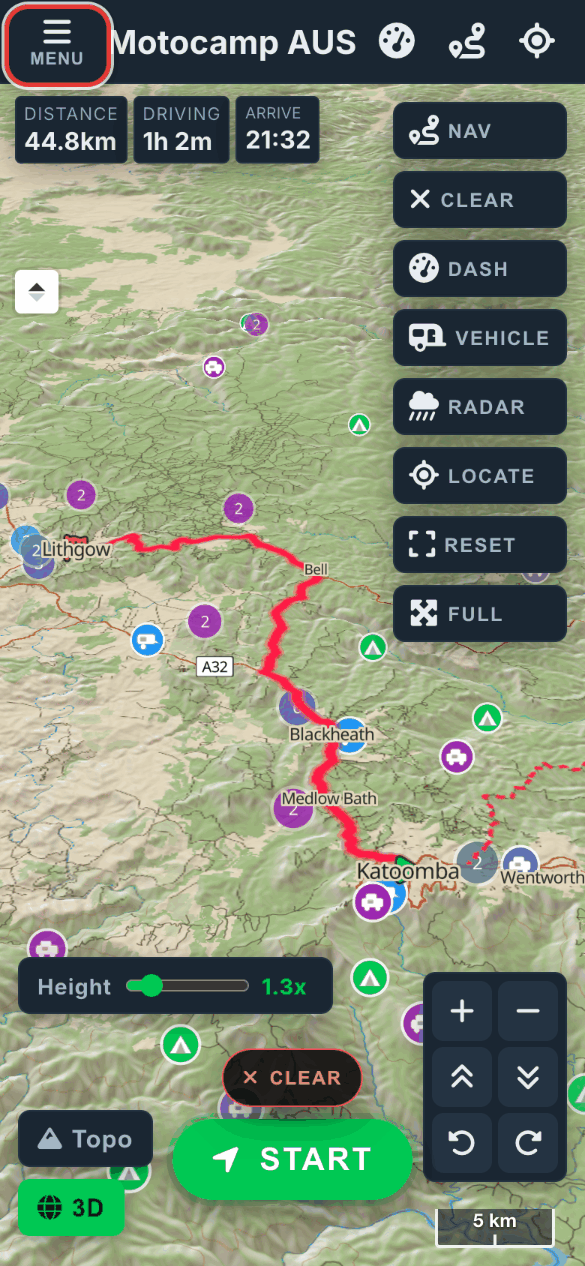
Planning works the same in 3D. Open Menu, then Route. Fill in your start and end. Tap Plan Route as usual. Then tap Menu to close it. Your route now lies on the ground. It follows every hill and bend. You can see where it crosses a range or drops into a valley.
6Tap Start to navigate in 3D
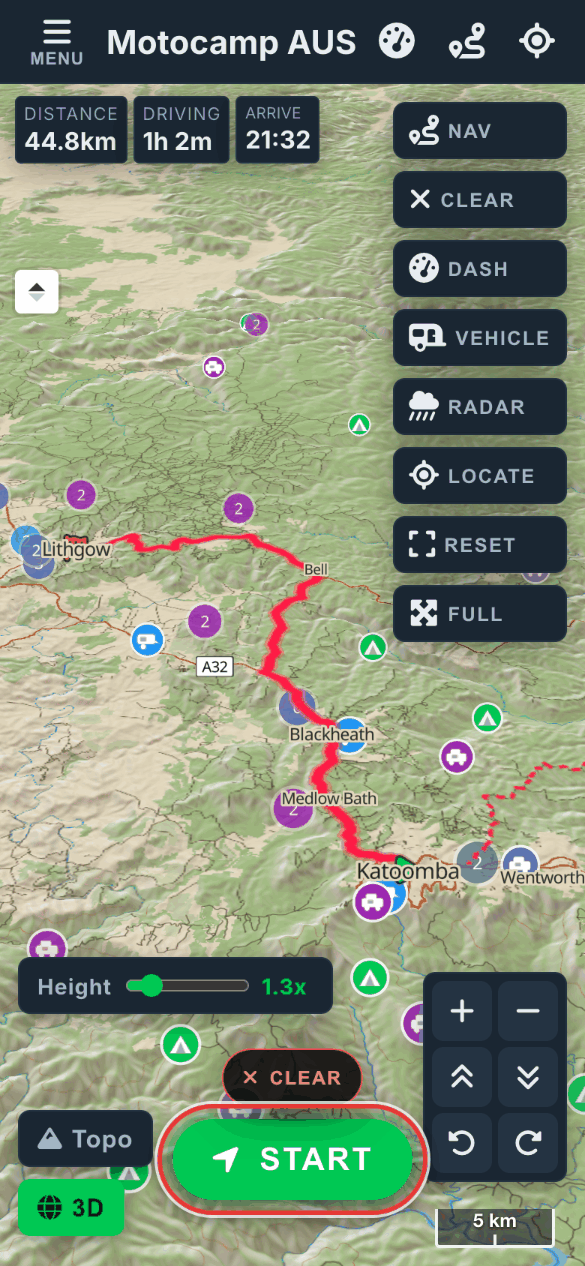
Tap Start on the map. The app gives you turn by turn directions from where you are. The first time, it uses the same view as your map. So with 3D on, you see the road from just behind you. The 2D or 3D button in the bar at the bottom switches the view. The app remembers your choice for next time.
Good to know
The map always opens flat when you start the app. Tap 2D to see the hills again. You can only tilt and turn the map in 3D. The tilt button on a flat map turns 3D on for you. Download your area in the Offline tab before you go. Then the 3D hills work with no signal. The Height slider only changes the main map. Turn by turn directions use their own hill height.
Also in the app: maps that work with no signal, campgrounds and free camps, and Plan with AI. It plans routes for eight kinds of vehicle, from an enduro bike to a 10-metre motorhome.