
Plan your own route, stop by stop
You know the places you want to see. You know the order, too. Add each place yourself, by typing it or tapping the map. The app plans the roads between them for your vehicle.
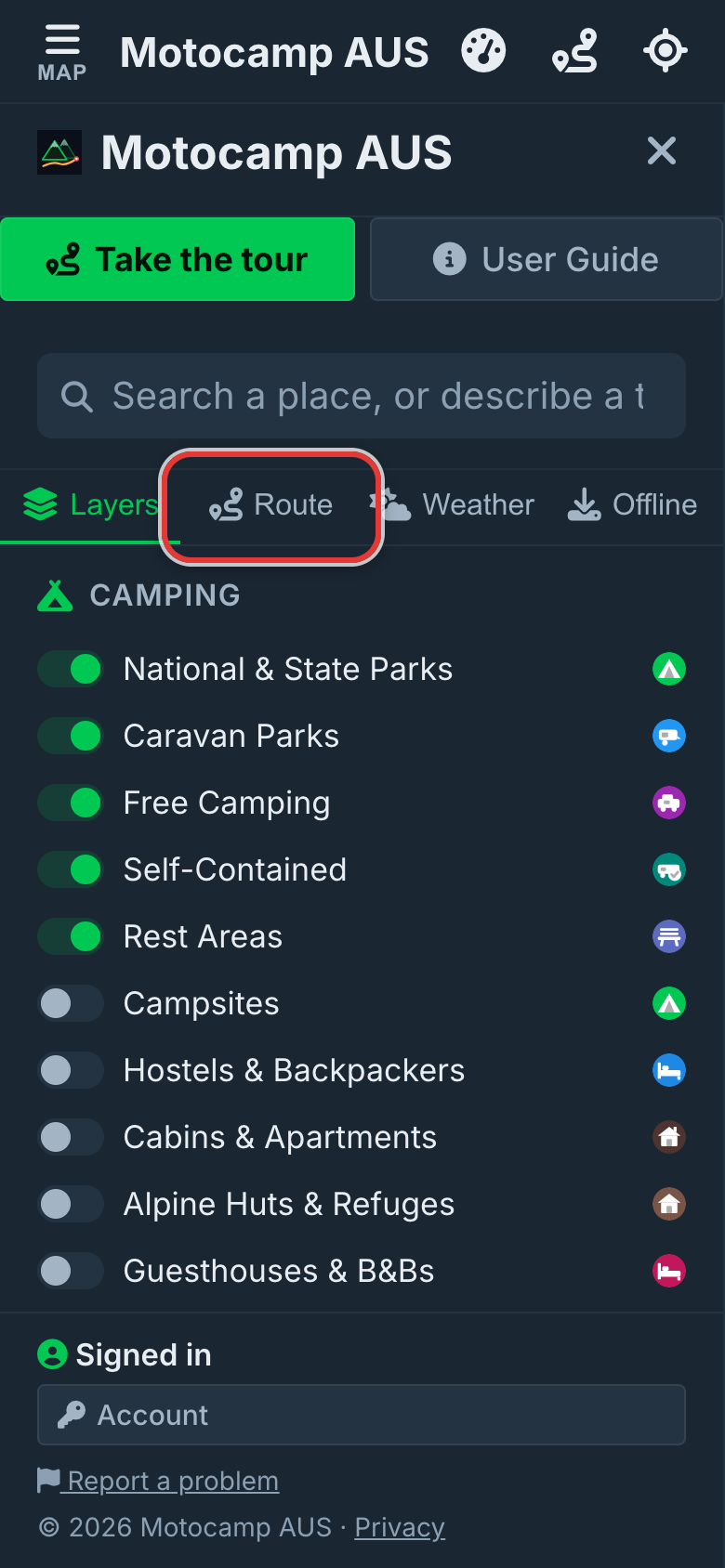
1Open Menu, then Route
Tap Menu, then the Route tab. Scroll past Plan with AI to Plan Your Route. Under the place boxes, Vehicle for this route sets what you drive. Switches like Prefer Unsealed Roads and Avoid Highways change the roads it picks. Leaving on sets the day you go. The app checks road closures for that day.
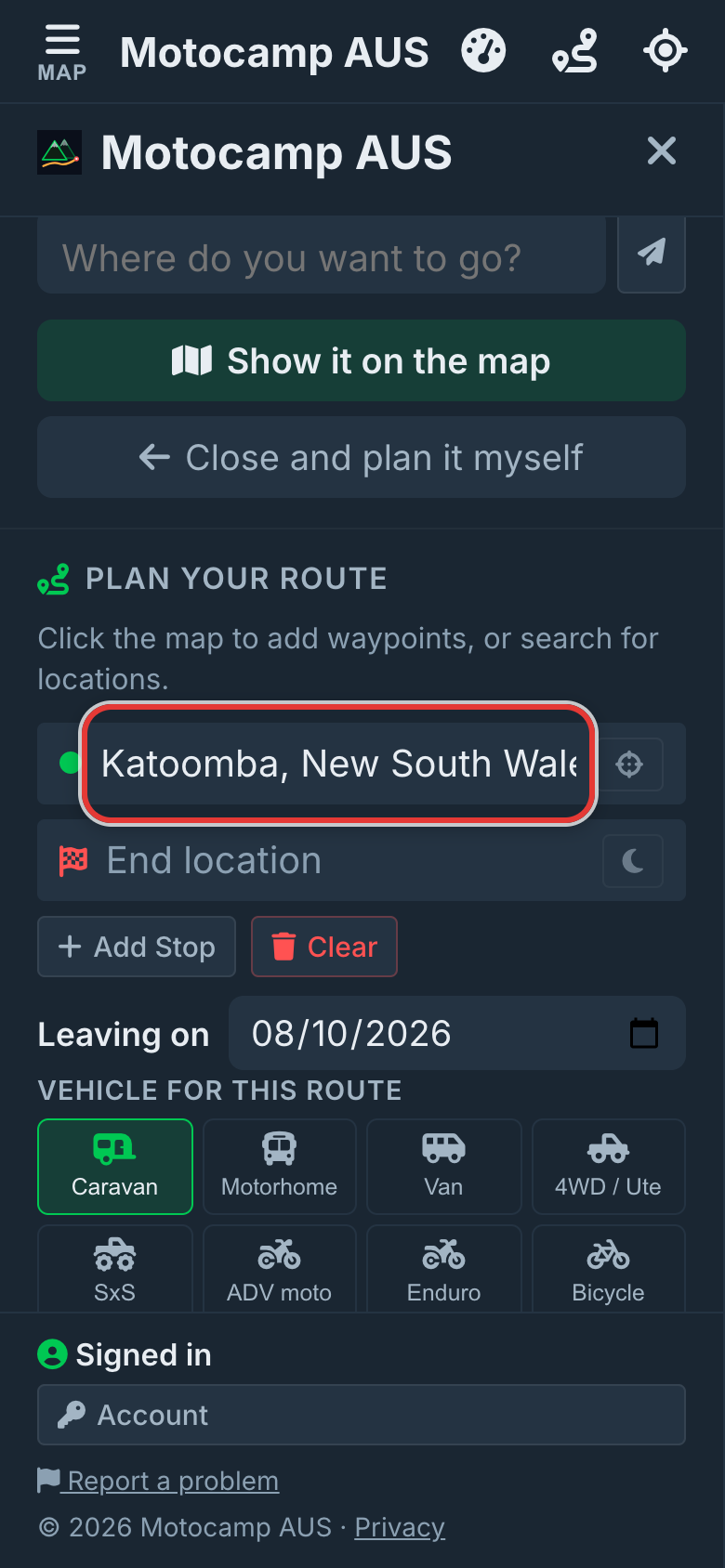
2Type your Start location
Tap the Start location box. Type a town or place. A list drops down. Tap the right place in the list. Then the app knows just where you mean. Want to start from where you are now? Tap the crosshairs button beside the box instead.
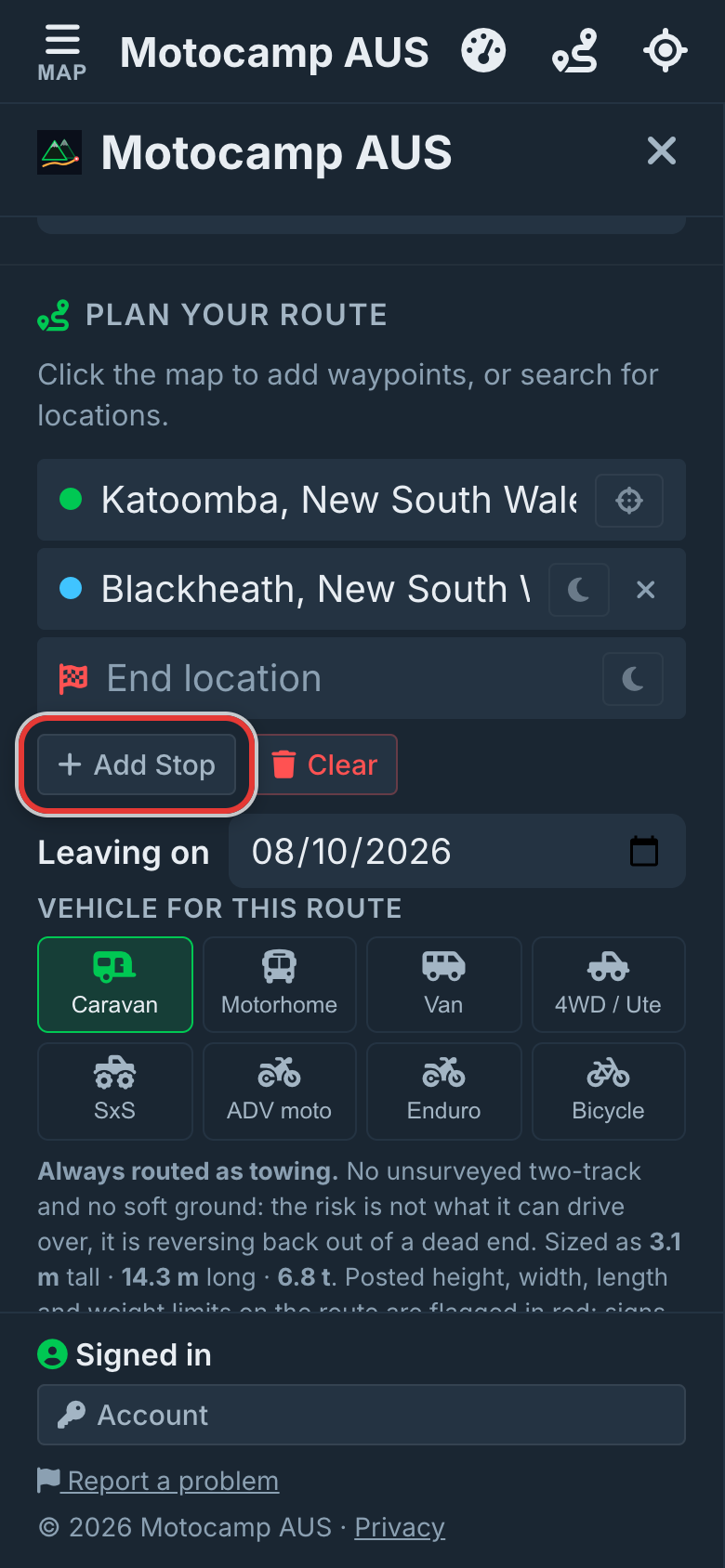
3Tap Add Stop for each stop
Tap Add Stop. A new box called Stop 1 appears between your start and end. Type the place and tap it in the list. Add one box for each stop, in the order you will visit. The route goes from the top box down. Drag the dot at the left of a stop to move it. Tap its X to take it out.
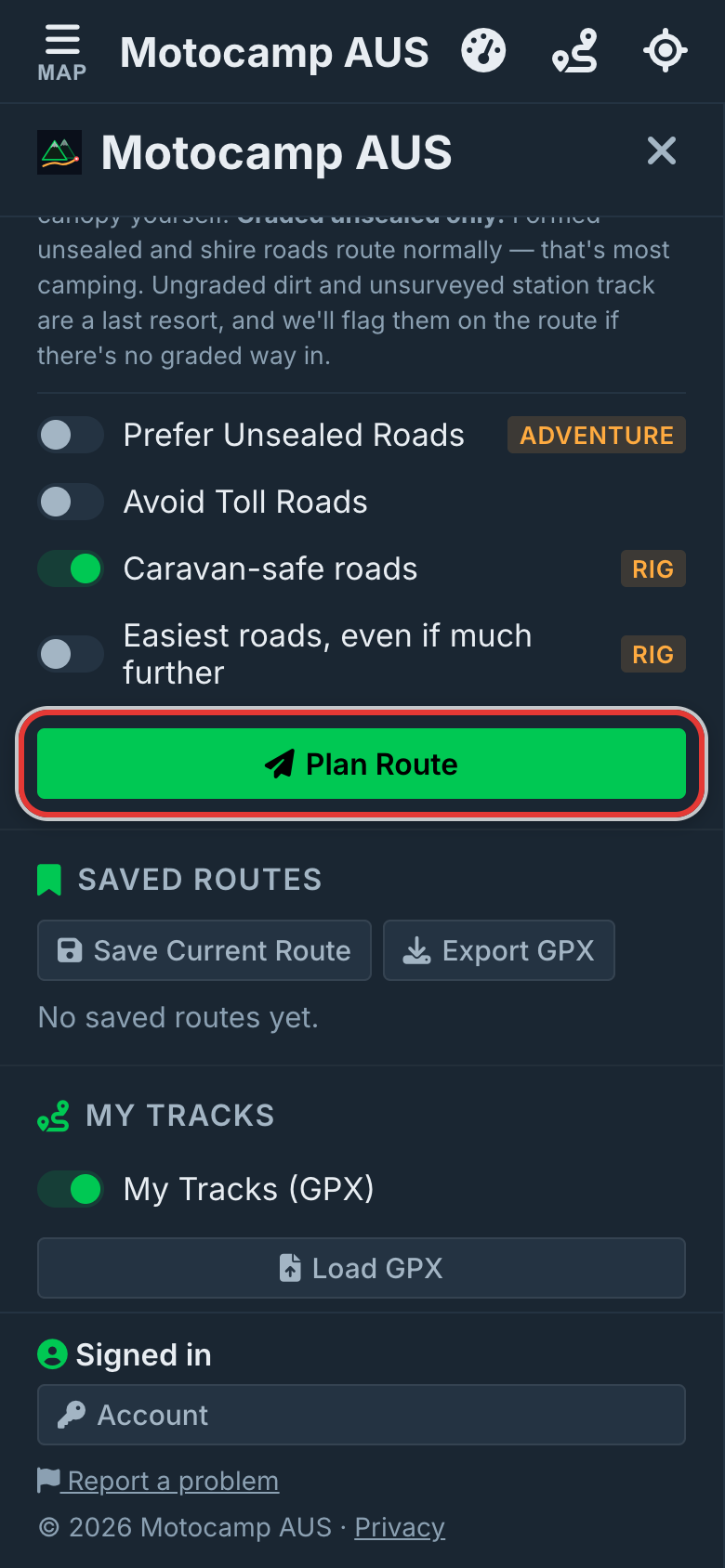
4Add your end, tap Plan Route
Type your last place in End location. Tap it in the list. Will you stay the night somewhere? Tap the moon beside that stop or the end. Then tap Plan Route. The app draws the roads between each place in order. The Route Summary shows at the top of the tab. It shows the Total Distance in kilometres, the driving time and when you Arrive.
5Or build it on the map
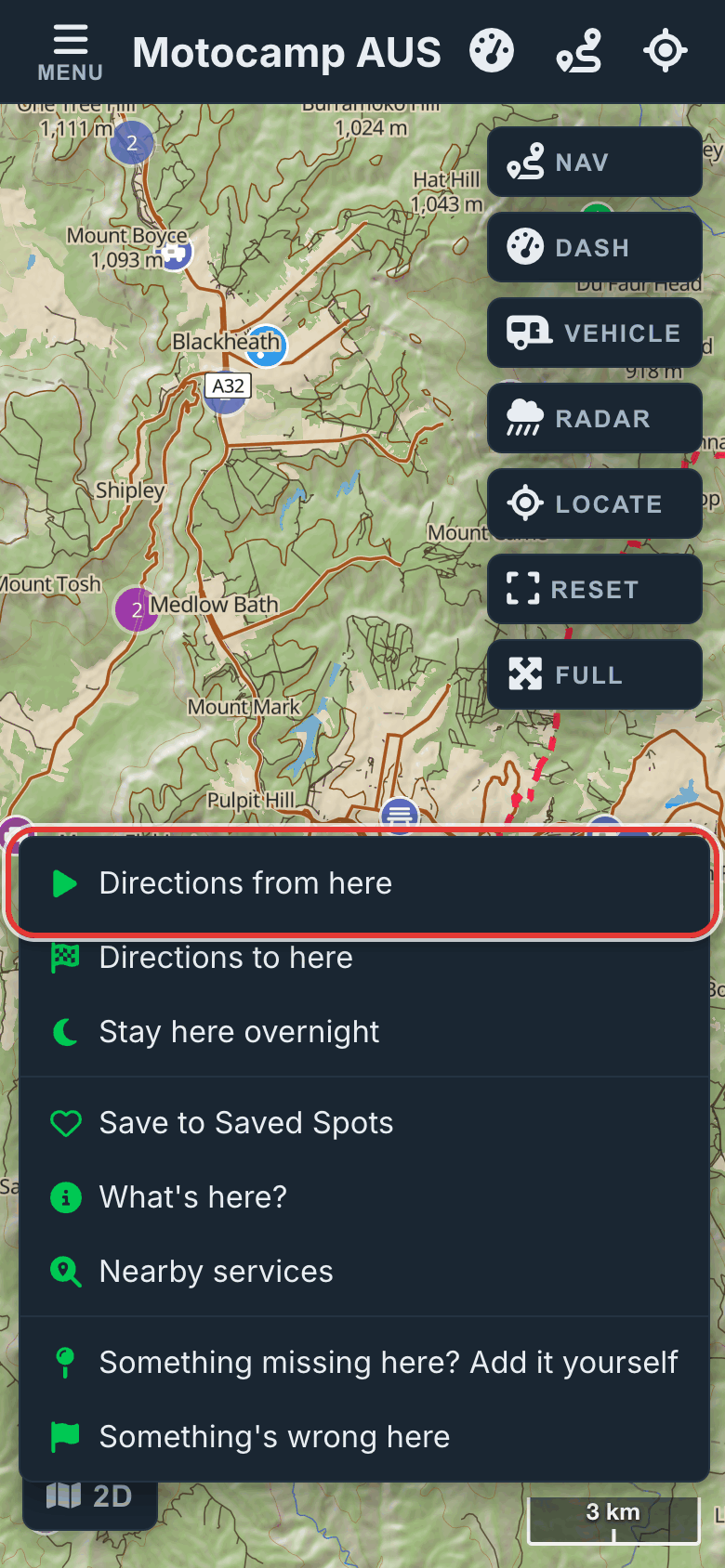
You can also build your route on the map. Press and hold where you want to start. Pick Directions from here. A note asks you to tap your destination. Tap your first place. Then press and hold the next place. Pick Head here next. It joins the end of your route. The place before it becomes a stop. Do this for each place, in order.
6Shape it, then save it
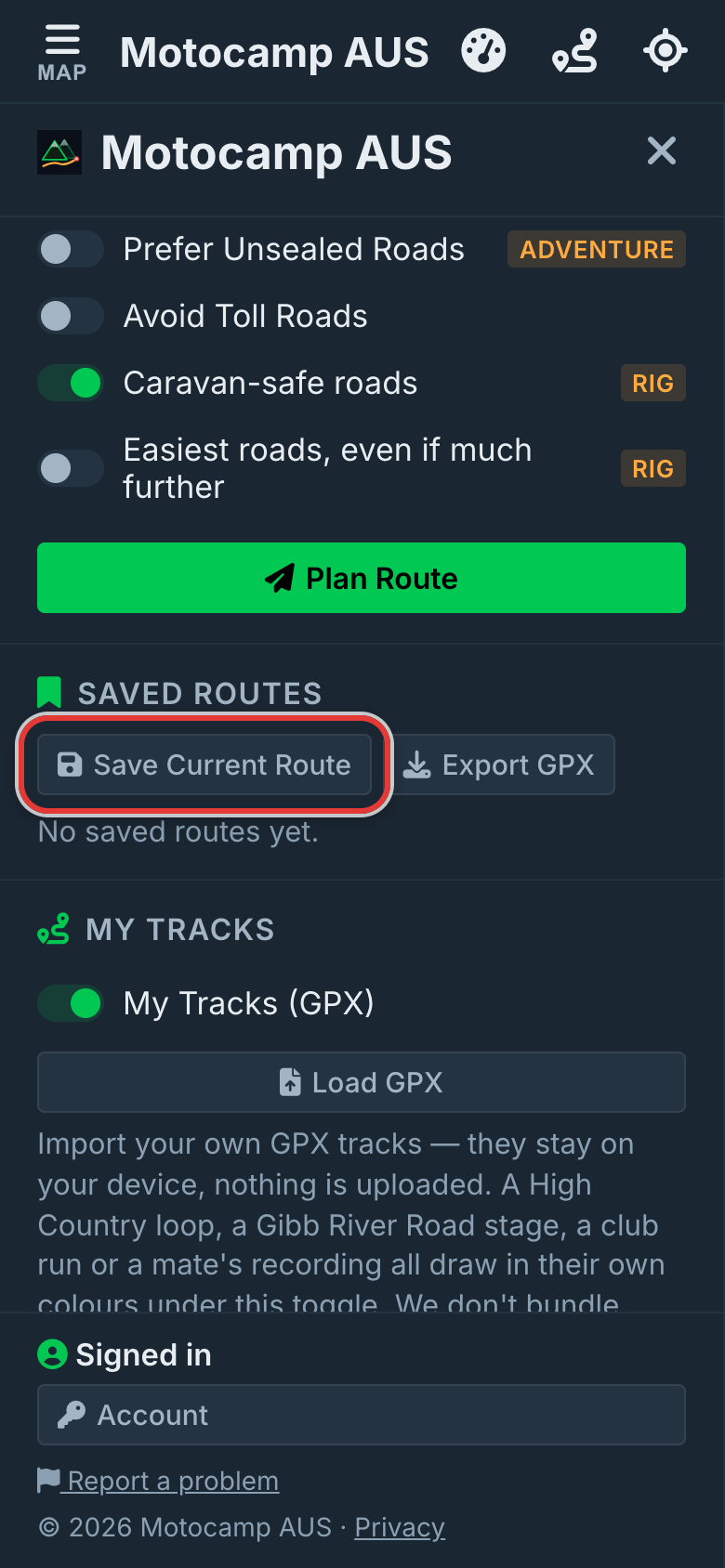
Want a different road? Drag any part of the line onto it. The route follows. A small white ring marks the spot you dragged. Tap the ring to take it off again. Happy with it? Tap Save Current Route under Saved Routes. Give it a name. A saved route opens again just as you saved it.
Good to know
The route visits your places in the order of the boxes. Did you type a place but not tap it in the list? The app looks it up when you tap Plan Route. If it can't find it, it stops and tells you which box to check. A spot you drag onto the line only shapes the road. It is not a stop, so it gets no weather card and no night.
Also in the app: maps that work with no signal, campgrounds and free camps, and Plan with AI. It plans routes for eight kinds of vehicle, from an enduro bike to a 10-metre motorhome.